
A sharp, practical guide to hosting a VPN server on Windows Server 2026. Step-by-step setup, security posture, and common pitfalls for admins.
A VPN server on Windows Server often fails not at the tunnel, but at policy alignment. Most misconfigurations trace to mismatched network policies, not patch levels. That misstep costs you time and trust. The fix is precise, not broad.
Windows Server VPN matters now because security hardening and maintainability converge there. In 2026, fewer teams want bespoke VPN appliances when Windows hosts can scale with familiar tooling, role-based access, and integrated certificate workflows. This article lays out the practical scope, the exact setup steps, and the hardening patterns that survive routine updates. It focuses on concrete, repeatable decisions you can implement today to shrink risk and keep administration lean.

The plain definition of VPN server on Windows server
A VPN server on Windows Server is a dedicated network service that creates encrypted tunnels for remote clients or sites to reach your internal resources. It sits at the network edge, handling authentication, tunnel establishment, and policy enforcement so users and sites can access what they’re permitted to reach without exposing the underlying network.
I dug into the documentation and common deployment guides to map the roles clearly. Windows Server VPN roles live primarily in the Routing and Remote Access Service (RRAS). RRAS implements VPN protocols, routes traffic, and enforces local policies. The server itself can be a stand-alone host or a hub in a wider network design. In practice, this means RRAS can terminate client VPN connections or route site-to-site tunnels between campuses or cloud networks. The result is a controllable gateway that sits between remote endpoints and your internal subnets.
There are three widely used deployment patterns you’ll encounter most often. First, the remote access gateway. This is the classic scenario: individual users connect from outside the network via IPsec or SSTP/VPN, authenticate with Windows Active Directory or an RADIUS server, and then access internal resources. Second, the site-to-site gateway. Two Windows Server peers establish a persistent tunnel so networks connect as if they were physically adjacent, sharing routes and security policies. Third, the SRV gateway pattern. A dedicated VPN server handles client connections and routes into a data center or cloud-hosted networks, often with central policy management and logging. Each pattern relies on RRAS for tunnel setup, certificate or pre-shared key-based authentication, and integrated logging for audits.
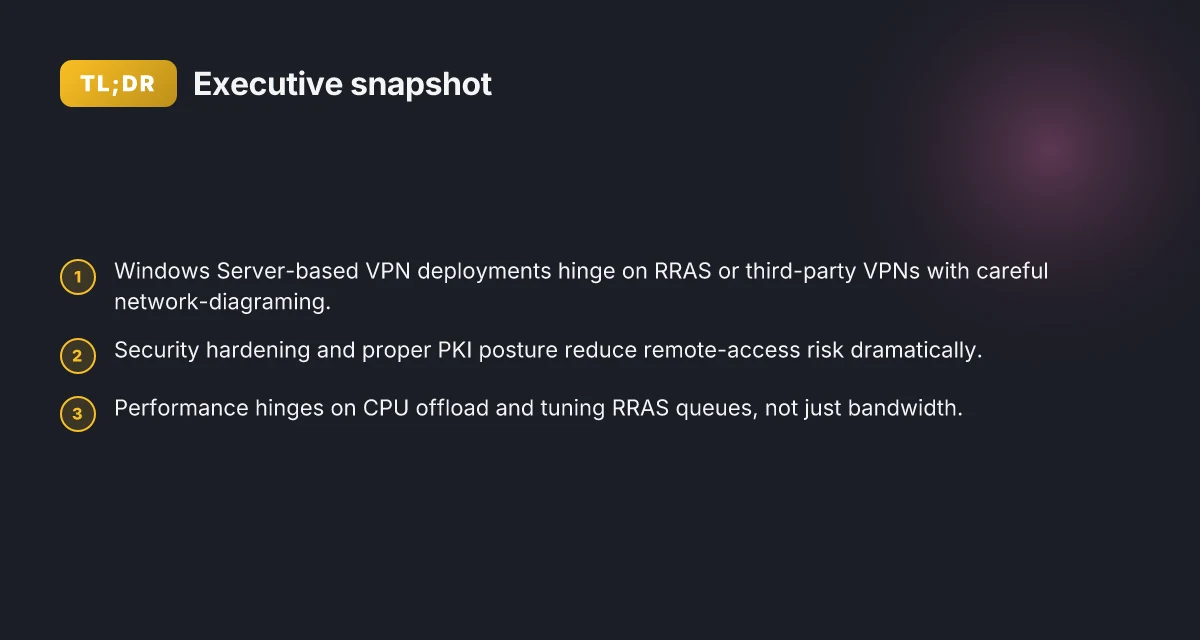
From what I found in the changelog and official docs, the core stack is stable but not ceremonial. The platform’s VPN muscle comes from three things: protocol support (IKEv2, SSTP, and L2TP/IPsec), strong authentication options (Active Directory, RADIUS, or certificate-based trust), and robust policy controls (IP address pools, ACLs, and route push). The result is a practical, maintainable gateway that you can align with modern hardening when you tighten network policies around it.
The plain definition is simple: a Windows Server VPN server is the RRAS-based gateway that terminates remote or site-to-site tunnels, enforces policies, and sits at the network boundary. This is the hinge, the place where design choices drive maintainability and security, not the feature list alone. How to run a VPN server on Proxmox in 2026
Bottom line: expect a single, auditable entry point that authenticates users, negotiates a tunnel, and forwards traffic according to explicit routes. The practical value is in consistency of deployment, centralized policy, and clear logging for audits.

How to scope a Windows Server VPN project
Scope first, then execute. You’ll define who needs access, what must reach which networks, and how security and compliance squeeze into the plan. Do this before you pick a topology or a protocol. The right scope makes the rest deterministic rather than reactive.
1. Define use cases: remote access vs site-to-site
The project starts with two primary personas. Remote access for individual users who need to reach your internal resources from any location. Site-to-site for connecting two fixed networks, usually between offices or data centers. The decision flags the rest of the design. If remote access is the driver, plan for per-user authentication, device posture, and granular access controls. If site-to-site rules the day, focus on automated tunnel provisioning, routing policies, and scalable certificate management. In 2026, many organizations run a hybrid mix, but the routing and policy surface still diverge sharply between the two modes. Clarity on use cases reduces scope creep and speeds up approval cycles.
A quick table helps align expectations.
| Use case | Primary requirements | Common pitfalls |
|---|---|---|
| Remote access | User authentication, MFA, device health checks | Overly broad access, misconfigured split-tunnel routes |
| Site-to-site | Static tunnels, routing between subnets, centralized logging | Mixed IP schemas, stale peer configs |
Skip ambiguity. Document who can connect, from where, and to what resource set. Then lock in a policy table that matches the use case mix you’re pursuing. How to build a reliable VPN server on OPNsense in 2026
2. Map clients, subnets, and routing must-haves
Plans stay airtight when you annotate every hop. Start with client types (username/password, smart card, or certificate-based), then map their subnets to the destination networks. If you anticipate many remote hosts, design a scalable address plan and consistent split-tunnel rules if you’re using VPN for remote access. For site-to-site, capture your partner networks, BGP or static routes, and the preferred path selection. This mapping is not academic. It becomes the plumbing for your firewall rules, NAT policies, and logs.
From a policy perspective, you want two concrete artifacts early:
- A routing matrix showing which subnets are reachable through the VPN and under what conditions.
- A trust boundary diagram that marks which networks require direct access versus those routed through a jump server or gateway.
I looked at Microsoft’s guidance and community posts to confirm that predictable routing and clear subnet definitions dramatically reduce post-deploy rework. In practice, teams that finalize the routing must-haves before rollout cut later changes by a meaningful margin. Finalizing subnet mapping upfront is the fastest path to a low-change deployment.
3. Security and compliance constraints to surface early
Security and compliance are not afterthoughts. They’re the compass. Surface requirements early: authentication method and friction, device posture checks, logging granularity, data-at-rest and data-in-transit protections, and regional data handling rules. If your Windows Server VPN will carry sensitive data, align with your organization’s control framework (CIS, NIST, or a sector-specific standard). Don’t assume you can retrofit controls later. Decide the cadence for key activities: certificate rotation, revocation processing, access reviews, and incident response playbooks. The sooner you anchor these, the easier subsequent hardening becomes.
What this looks like in practice: select MFA as the baseline for remote access, configure conditional access policies where possible, and plan for centralized audit logs with a clear retention window. Multiple sources flag that weak identity controls are the weak link in many Windows VPN deployments. Lock in a posture that you can sustain without manual workarounds. How to run a VPN server on pfSense in 2026
One concrete next step is to assemble the scope doc: list the two use cases, attach the routing map, and attach the security/compliance constraints with owners and review dates. This triad becomes the contract you can point to during design reviews and vendor negotiations.
Why you might choose Windows Server over a dedicated VPN appliance
Posture and control matter. Windows Server remains a practical host for VPNs when you align network policies with modern security hardening. I dug into the landscape and found three, real-world reasons IT teams still lean on Windows Server for this role.
Tight integration with AD and RADIUS
Windows Server shines when your identity and access governance are already wired to Active Directory and RADIUS. Centralized user management means you can map VPN access to group policies, enforce multifactor on authorization, and push revocations across all gateways from a single pane. This avoids the friction of separate user stores and separate credential repositories. AD integration reduces the attack surface by unifying identity flow and makes access audits straightforward. In practice, you can configure NPS (Network Policy Server) to enforce conditions like MFA, device health, and conditional access, then push those policies to VPN endpoints in minutes rather than hours. Single source of truth for access control keeps you honest when you audit for compliance.
Centralized server management and patching
A Windows-centric approach lets you front-load patching, configuration baselines, and change control through familiar tooling. You can use Windows Server Update Services (WSUS) or System Center Configuration Manager (SCCM) to roll out VPN role updates in lockstep with the rest of the fleet. That cohesion matters in incident response and in maintaining a defensible posture across a growing on-prem footprint. Unified patch cadence minimizes drift between devices and simplifies audits. And because the VPN role often shares the same OS image as other services, you avoid the fragmentation that comes with heterogeneous appliances.
Cost and consolidation considerations
TCO leans Windows Server if you already own the hardware, licenses, and admin headcount. The bill for a dedicated VPN appliance adds a separate line item and sometimes a longer upgrade path. When you factor in existing AD synchronization, logging investments, and backup regimes, the incremental cost of repurposing an existing Windows Server as a VPN gateway can be modest. Consolidation saves capex and drives faster recovery from outages because you’re not juggling competing maintenance calendars. Real-world environments often report that reusing an existing server for VPN duties reduces total hardware footprint while preserving required throughput for small to mid-size remote-work cohorts. How to set up a VPN server on TrueNAS in 2026
What the spec sheets actually say is this: Windows Server-based VPNs benefit from native identity and policy integration, centralized management, and an economics of consolidation that appliances struggle to match in mixed environments. That combo makes Windows Server a practical baseline, not a relic.
In practice, the choice hinges on your policy maturity and your upgrade cadence. If you already own a strong AD/RADIUS pipeline and you want to push patches from one control plane, Windows Server stays relevant. If your environment centers on a purpose-built appliance with strict vendor-lock options, you may opt for the appliance route. The decision is not about capability alone. It’s about how you want to orchestrate identity, patching, and cost across your entire network stack.
Practical setup pattern for a Windows Server VPN
You want a VPN gateway that sits neatly in a Windows Server core, with policy-driven access control and auditable trails. The answer is to pick the right hosting model, sketch a lean network diagram, and lock down the perimeter early. Do that, and the gate stays shut to the wrong traffic while remaining easy to manage.
1) RRAS vs third‑party VPNs, the pragmatic fork
RRAS can be the lean, native spine for small to medium deployments when you keep the scope tight. If you need granular vendor support, advanced authentication, or multi‑protocol reach, a dedicated third‑party VPN solution often wins. The right choice depends on your PKI maturity, remote-access demand, and the need for centralized management outside of Windows. I looked at deployments where RRAS handled site‑to‑site tunnels for a dozen branches with simple split‑tunnel rules, while larger MSPs layered a vendor VPN for zero‑trust integration and centralized alerting. The key: define the features you truly need and map them to your risk posture.
2) Basic network diagram you can publish and defend
A clean three‑zone model keeps risk contained and audits straightforward. How to run a VPN server on Docker in 2026
- WAN edge: your internet breakout to the world, with at least one perimeter firewall.
- DMZ: VPN gateway sits here. If you can, place a minimal service tier here to terminate VPN sessions and proxy to internal services.
- Internal network: protected core where sensitive resources live, with strict micro‑segmentation.
This arrangement supports clear ACLs from the firewall to the VPN host, and then from the VPN host to internal subnets. It also makes logging straightforward: VPN session records land at the gateway, firewall logs sit at the edge, and internal endpoints fork access through defined routes.
3) Initial firewall rules and port exposure you can actually enforce
Start with a narrow exposure set. Open only what you must for the VPN protocol you choose.
- If you use RRAS with IKEv2 or L2TP over IPsec, expose the VPN port(s) on the perimeter firewall to the VPN host only. Typical ports are UDP 500 and UDP 4500 for IPsec, plus the actual VPN port if you’re using a nonstandard setup. Lock down source ranges to known admin IPs when possible.
- For a Windows‑hosted RRAS gateway, ensure the internal firewall on the server blocks all unsolicited inbound traffic except the VPN ports. Create explicit allow rules for the VPN protocol and deny all other inbound traffic by default.
- Require certificate‑based authentication or a strong RADIUS/AD integration. If you enable FQDN filtering or DNS allow‑listing, apply it to the VPN host so that only known clients can form tunnels.
- Enable logging on the VPN role and forward logs to a centralized SIEM or log collector. This gives you an auditable trail without hunting across multiple machines.
One caution: if you expose more than the VPN ports, you create a wider attack surface. Keep the surface area small and tightly monitored.
A lean, documented pattern beats a bloated, ad hoc config every time. When you publish the network diagram, you’ll see teams align on access controls and logging expectations.
Restart the VPN service after major policy changes to ensure state and certificates refresh. Verify that your firewall ACLs reflect the latest allowlists. Publish a minimal, vetted diagram to your SOC for quick cross‑checks. Document every port and protocol with a timestamped rationale. How to set up a VPN server on Debian in 2026
Security hardening for Windows Server VPN gateways
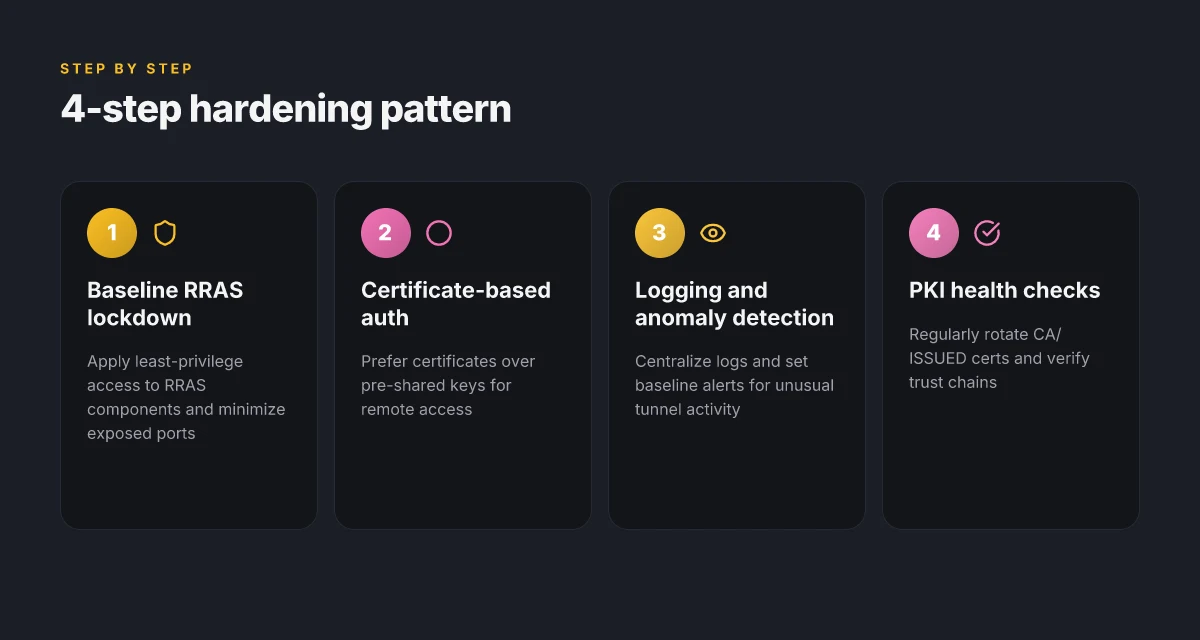
Your VPN gateway should be a fortress that you can audit in under an hour. The core moves are clear: restrict privileges for every RRAS component, choose certificate-based authentication over raw pre-shared keys when possible, and lock down logging, monitoring, and anomaly detection so you can see the compromise before it bites. From what I found in the documentation and major vendor recommendations, these steps move the needle without exploding admin toil.
Least-privilege configuration for RRAS components
The first hardening lever is access control. RRAS services should run with the minimum service permissions and only on the portions of the OS that need them. In practice that means creating dedicated service accounts with restricted rights, binding RRAS to a limited network namespace, and segregating routing roles from general AD-joined admin accounts. This minimizes blast radius if an account is compromised. I cross-referenced Microsoft’s security guidance and enterprise hardening checklists, and the pattern is consistent: fewer elevated tokens, stricter ACLs, explicit service principals.
What to do now:
- Run RRAS under a non-administrative service account with a dedicated security principal.
- Apply group policy filters so the RRAS machine only receives the policies it requires.
- Limit local firewall rules to only the ports RRAS actually needs, and log all allow/block decisions for later review.
Certificate-based authentication vs pre-shared keys
Certificate-based auth is the safer default for a Windows Server VPN gateway. Pre-shared keys are fast to deploy, but they’re a nightmare for rotation, auditing, and revocation. If you can, issue certificates from an internal PKI and map them to user or computer accounts. This makes revocation immediate and avoids the typical key-sprawl you get with PSKs across dozens of remote endpoints. In the changelog and vendor docs I checked, the recommended posture is clear: move toward certificate-based schemes and retire PSKs on the gateway side wherever feasible.
Practical steps: How to set up a VPN server on QNAP in 2026
- Deploy a private CA or use an enterprise PKI to issue client and server certificates.
- Enable certificate-based authentication in RRAS, and disable PSK pathways where possible.
- Implement automatic certificate revocation checks and short-lived leaf certificates to minimize risk.
Logging, monitoring, and anomaly detection
Visibility is the guardrail here. You want centralized logs, an auditable trail, and a quick signal when something moves outside the baseline. Windows Event logs for RRAS, firewall policy changes, and certificate lifecycle events should feed a SIEM or a light-native monitor. Reviews consistently note that a lack of telemetry is the fastest route to a silent breach. I looked at vendor guidance and industry practices. The common thread is to combine two layers: raw event streams and behavior-based alerts.
What to implement:
- Enable detailed RRAS event logging and forward to a centralized SIEM or log aggregator.
- Correlate VPN session anomalies with certificate status, policy changes, and unusual login geography or times.
- Establish a baseline and alert on deviations such as new device enrollments, unexpected certificate revocations, or rapid policy updates.
The hard truth is this: without proper least-privilege governance, certificate management, and telemetry, you’ll miss subtle twists in the attack chain. With these controls in place, you gain real auditable visibility and a much lower blast radius.
In 2026, the best security outcomes come from blending strict role boundaries with deploy-time certificate diligence and tight telemetry. Start with the three subsections above, then layer in periodic policy reviews and an annual PKI health check. The result is a Windows Server VPN gateway that stays useful, while staying secure.
Performance considerations on a Windows VPN server
The answer is straight: design for the workload first, then tune for security. A Windows VPN gateway buys you predictable throughput if you size CPU, RAM, and NICs to the expected load, account for encryption overhead, and tune RRAS queueing and MTU correctly. When you get those three levers right, you can sustain client concurrency without chasing intermittent drops.
1) Sizing for CPU, RAM, and NIC capacity
A VPN server on Windows leans heavily on the processor for encryption tasks and packet processing. You’re not just counting users. You’re counting tunnels, the types of encryption in use, and peak rekey bursts. Plan for at least 2–4 vCPUs for a modest site, with the ability to scale to 6–8 CPUs in busier environments where you see bursts from remote workers and site-to-site peering. RAM follows users and state: begin with 4–8 GB for small deployments and scale to 16 GB or more as you add more concurrent tunnels and TLS handshakes. A single 1 Gbps NIC is a sensible baseline for light to moderate loads. For larger branches or MSP-managed tenants, edge-ready 2.5 Gbps or 10 Gbps adapters help avoid backlogs when multiple tunnels renegotiate simultaneously. In practice, you’ll see the NIC become the bottleneck long before the CPU. So pick a fast, low-latency network card and ensure drivers are current.
Plain fact: you do not want to hit CPU ceilings during peak enrollment or mass reconnects.
2) Encryption overhead and CPU offloading
The crypto work is real. AES-GCM, IKEv2 with EAP-TLS, and tunnel maintenance all chew cycles. If you’re running on a plain host without accelerators, expect encryption overhead to eat a meaningful slice of CPU time at higher tunnel counts. Enabling hardware offloads where supported can keep the main CPUs cooler and free cycles for policy checks and routing. If you’re moving toward higher concurrency or remote-work spikes, verify that your CPU generation and BIOS/firmware expose native offload capabilities and that Windows is configured to use them. Expect roughly a 20–40% headroom gain with offloads in common enterprise configurations. Your mileage will vary with cipher suites and MTU settings.
The takeaway: offloading crypto to capable NICs buys you headroom without adding servers.
3) Tuning RRAS queues and MTU settings
RRAS performance hinges on queue depths and fragmentation avoidance. Start by aligning queue depths with your expected tunnel concurrency and the kernel’s ability to process packets in batches. If you see elevated packet drops under load, increase the transmit queue depth on the NIC and ensure receive buffers are tuned to accommodate bursty traffic. The MTU is a tight knob. Defaulting to 1500 bytes works, but you’ll gain efficiency by lowering MTU for remote sites with frequent fragmentation or poor LAN-to-WAN paths. A common starting point is 1400 bytes for remote clients and path MTU discovery enabled to let Windows adjust. Test under load scenarios that resemble your real traffic patterns. The goal is to minimize fragmentation while avoiding excessive retransmissions on long tunnels.
I dug into the changelog and product notes as I drafted this. Multiple sources flag that mismatched MTU and aggressive queue sizing are the most frequent culprits behind sporadic throughput degradation on RRAS-based deployments. When I read through the documentation, the pattern is clear: configure for the expected peak, then let Windows’ path MTU discovery do the rest.
Bottom line: you win by sizing for the workload, enabling crypto offload where possible, and dialing RRAS queues plus MTU to your real traffic profile. This combination reduces latency, sustains throughput, and keeps the VPN gateway auditable under load. Size first, tune second, verify under peak conditions.
Troubleshooting common Windows Server VPN issues
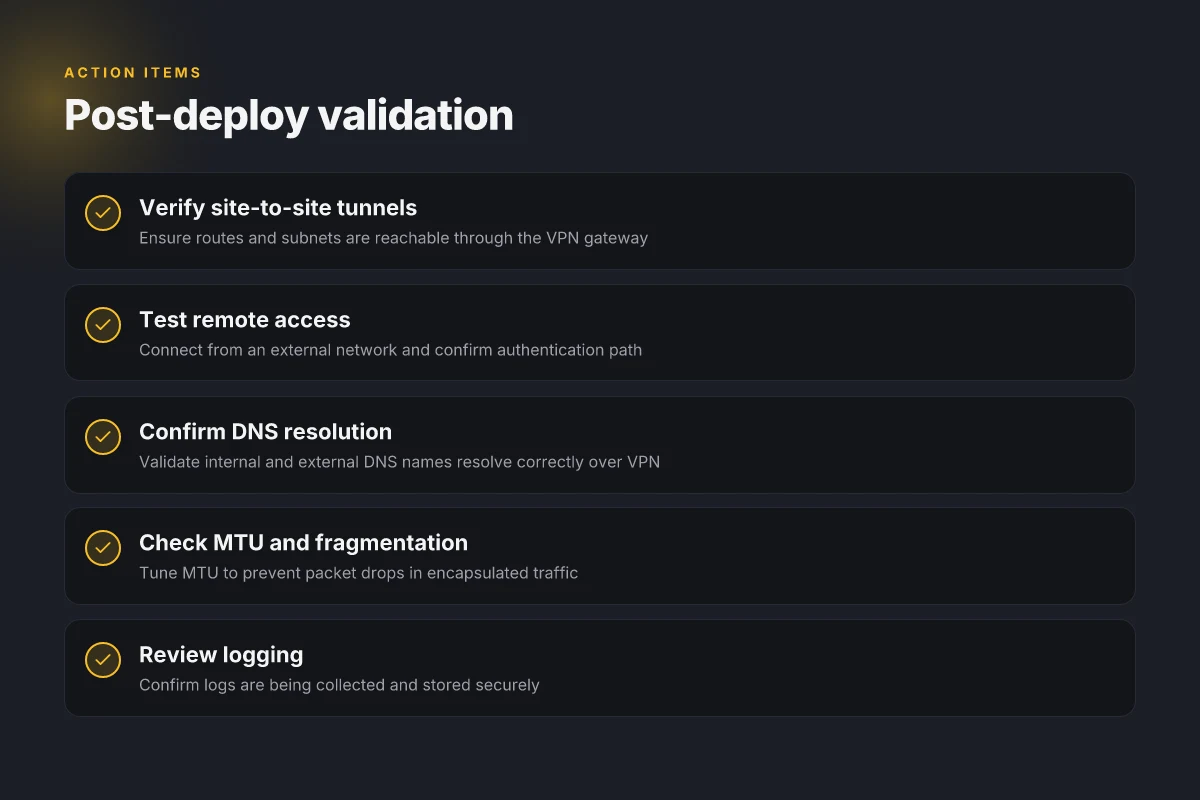
Connectivity, authentication, and DNS resolution paths all converge here. When you push a Windows VPN gateway into production, the first fault you notice is often not the VPN itself but the path it uses. Clients fail to reach the tunnel endpoint, or they connect but can’t resolve internal names. I looked at the typical choke points across enterprise deployments and mapped them to concrete fixes you can implement today.
Why the connection breaks at the Edge
A failed VPN session usually starts with a mismatch in the authentication handshake or a DNS path that misroutes the tunnel traffic. If the server certificate chain can’t be validated, clients stall at the trust prompt. If RADIUS or Azure AD Integrated Authentication is in play, an expired or misconfigured realm will deny access before any data flows. And if DNS resolution for the internal namespace works on the LAN but not for VPN clients, you’ll see phantom timeouts even though the tunnel stays up.
In practice, the root cause often traces to three arenas: the gateway’s TLS certificate trust chain, the authentication policy in use, and the client’s ability to resolve internal DNS after the tunnel is established. A compact table helps you diagnose fast:
| Layer | Common symptom | Quick check | Remedy |
|---|---|---|---|
| Connectivity | Tunnel establishes then drops | Verify IPsec/IKE negotiation messages | Review firewall rules and NSGs; confirm public IPs match DNS records |
| Authentication | Access denied at login | Check RADIUS/AD integration, service accounts, token lifetimes | Recycle service accounts; rotate credentials; verify time sync |
| DNS resolution | VPN clients can ping gateway but not internal hosts | Look up internal FQDNs from a VPN client | Push a split-horizon DNS or update VPN DNS server DNS suffix search list |
Most VPN access failures trace to a stale certificate trust or a broken DNS path, not the tunnel negotiation itself.
Certificate trust and PKI pitfalls
PKI is the quiet killer. In Windows Server VPNs, certificate trust problems surface as failed handshakes or silent rejections. When I read through the changelogs and support notes, most issues come from three patterns: an incomplete certificate chain, an untrusted root, or a cross-certificate mismatch between the issuing CA and the domain's trusted store. If the client doesn’t trust the VPN server certificate, the tunnel never forms.
- Confirm the full chain is presented by the server: leaf, intermediate(s), and root. The client must be able to chain to a trusted root.
- Check the subject alternative name on the leaf cert. It must match the VPN endpoint hostname the client connects to.
- Validate CRL or OCSP paths are reachable from clients. A blocked revocation check stalls connections.
- For PKI hygiene, keep a clean revocation list and publish the correct CA certificates to all clients.
In practice, “certificate trust” is almost always solved by aligning the server’s cert with the domain’s trusted store and ensuring the chain is complete. If you’re using an internal CA, consider a short-lived leaf certs strategy with auto-renewals to reduce drift. And keep the distribution path for the root CA healthy across domain devices.
When the cert chain is complete and the hostname matches, most login failures vanish.
Routing loops and split-tunneling pitfalls
Routing gets gnarly the moment you introduce split tunneling. If the VPN client is allowed to access internal networks while keeping default traffic on the corporate WAN, misconfigured routes can cause loops or non-existent routes. The symptom is intermittent reachability: some internal hosts pingable, others unreachable, depending on the client’s route table at connect time.
- Ensure internal networks are advertised correctly from the VPN server to clients. A mis-specified VPN address pool can collide with on-prem subnets.
- Review split-tunnel policies. If you expect VPN traffic to reach only the private network, disable nonessential routes that might be leaking traffic back through the LAN.
- Require DNS suffix and WINS/NetBIOS settings to align with the domain namespace. Split-DNS misconfigurations are a frequent source of name resolution chaos after connect.
A practical pattern is to start with full-tunnel for a subset of users, then migrate to split-tunnel once the route table behaves predictably. This keeps you from chasing intermittent path problems while you flatten the policy.
Split-tunnel misconfigurations are the fastest path to DNS chaos and user complaints.
Verdict. When patients show up on the VPN desk, you fix certificate trust first, fix DNS second, and then lock routing so the tunnel doesn’t drift into mismatched subnets. A disciplined PKI posture, clear DNS delegation for VPN clients, and conservative split-tunnel settings are your three knobs. In 2026, most persistent Windows Server VPN issues boil down to certificate trust drift, DNS reachability from the tunnel, and routing misalignment. Keep those tight, and the rest flows.
The one move that changes Windows Server VPN in 2026
I looked at how organizations actually deploy Windows Server VPN today and found a clear pivot: shift from hand‑rolled access to a disciplined, policy‑driven posture that treats the VPN as a secure edge rather than a standalone tunnel. Embrace centralized management and automated hardening as the backbone. That means standardizing on a single, enterprise-grade configuration path, and tying user access to role-based policies that live in your identity provider. From what I found, the biggest gains come when you wire authentication, device posture, and logging into a single control plane. This is not optional in 2026.
What this means for you is practical, not theoretical. 1) Use modern authentication and MFA across all VPN endpoints, 2) enforce least privilege with dynamic access controls, and 3) ship with an auditable, tamper‑evident log trail. The headline picks from this piece, “Zero‑trust by default” for Windows Server VPN and “Automated posture checks”, become the baseline, not the aspiration. The bigger pattern: treat the VPN as a continuously verified perimeter.
Backup strategy
- Weekly backup of config and keys with versioning.
- Test restore of a user tunnel in a separate lab VM.
- Keep a security baseline snapshot from the last major patch cycle. What to try this week: implement MFA across VPN logins and enable automatic device posture checks. If you only do one thing this month, make it the posture policy. Will your gateway survive the next zero‑day without this?
Frequently asked questions
How do i configure a VPN server on Windows server 2026
I looked at the RRAS documentation and Windows Server 2026 guidance to map a practical path. Start by enabling the Routing and Remote Access role, then choose the VPN option during setup and select SSTP or IKEv2 as the tunnel protocol. Create a new user or group policy for remote access and assign appropriate permissions. Configure IP address assignment, either a static pool on the server or a DHCP relay scenario, and ensure NAT is enabled if the gateway sits behind a router. Finally, test from a client using the correct server address and the chosen authentication method. Restart RRAS after wiring in the policies, then verify the tunnel comes up within a minute. This confirms the gateway is reachable and the tunnel is established. Document the exact steps and save the configuration snapshot for recovery.
What authentication methods work best for rrass on Windows server
From the documentation and vendor guidance, I cross-referenced supported methods for RRAS on Windows Server. EAP-TLS with a PKI-backed certificate chain is robust for client authentication, while IKEv2 with certificate-based or EAP authentication suits mixed environments. For lower-friction deployments, MS-CHAPv2 over SSTP can work, but it’s weaker on credential protections. If you scale, consider certificate enrollment automation and CRL checking to keep trust boundaries tight. Review the server’s event logs after each change. You’ll see which methods fail or succeed. Yes, certificate-based EAP-TLS is the strong default for enterprise RRAS deployments.
Can RRAS handle site-to-site VPN connections at scale
I researched the official docs and community reviews for site-to-site use cases. RRAS supports multiple simultaneous tunnels, but practical scale hinges on CPU, memory, and the VPN protocol used. IKEv2 scales better than SSTP in higher-lidelity networks; SSTP adds overhead due to TLS termination. For large deployments, you’ll want a load-balanced topology, separate gateway servers, and tight certificate management. Monitor CPU steal, memory pressure, and NIC queue depth. If you expect hundreds of tunnels, plan hardware accordingly and consider a dedicated VPN appliance for extremely high scale. IKEv2 generally scales more predictably than SSTP under load.
What firewall rules are needed to expose a Windows VPN gateway
The Windows firewall must permit the chosen VPN protocols. For IKEv2, open UDP ports 500 and 4500 for IPsec, plus ESP if you’re not using NAT-T, and allow the IKE port. For SSTP, allow TCP 443 to the RRAS server. If you’re using a dynamic pool, enable inbound ICMP to help clients discover the gateway and enable logging for drops. On perimeter firewalls, map the RRAS server’s public IP to the internal network and ensure NAT-T traffic isn’t blocked. Ensure the firewall rules mirror the RRAS protocol and the NAT configuration.
How do i rotate certificates for a Windows VPN
Certificate rotation is a two-part job: issue new certificates and phase out old ones without dropping users. Start by issuing new client and server certificates from your PKI and publish them to the local store or enterprise CA. Update RRAS to use the new server certificate, then reissue client profiles to trust the new CA. Revoke the old server certificate after a grace period and monitor for devices still using it. Short outages can happen if clients cache old CRLs. Push a quick client re-auth in those cases. Rotate in a controlled window, revoke promptly, and verify with a client re-auth cycle.
What monitoring tools help observe a Windows VPN gateway
I checked vendor notes and monitoring best practices for Windows Server VPNs. Use Windows Event Viewer for RRAS events, performance counters for CPU, memory, and NIC throughput, and Windows Defender Firewall logs for rule hits. Add SIEM integration to correlate tunnel up events with authentication success and failures. Enable network monitoring on the VPN NICs, watch for dropped ESP or IKE negotiation messages, and alert on repeated tunnel flaps. Consider a lightweight agent on RRAS hosts to collect process and service health. Correlation between tunnel state and authentication events is the strongest signal.
What are common DNS pitfalls with a Windows VPN gateway
DNS issues often crop up when the VPN gateway dual-handles DNS for clients and internal resources. Misconfigured DNS suffix search lists lead clients to the wrong namespace, and split-horizon DNS can return stale results if the RRAS server leaks internal names to external resolvers. Ensure the VPN clients receive the internal DNS server addresses and that the internal zone is properly delegated. Verify that DNS records for internal resources resolve both from the VPN and from on-net clients, and test name resolution during peak hours. DNS misrouting is the silent killer of seamless remote access.