Learn how to set up a VPN server on a QNAP NAS in 2026. Clear steps, security tips, and troubleshooting for reliable remote access.
Most small-business admins discover the fastest VPN path for a QNAP NAS is not the default GUI wizard, but a hard-wounded reality: performance collapses when you overload the router with a misconfigured port map. The practical route hinges on choosing either OpenVPN or WireGuard with clean profiles, and then validating remote access in a single, repeatable sequence.
The numbers behind that sequence matter: QNAP firmware versions 5.x and later, OpenVPN 2.5+ or WireGuard 1.0+, and a router that supports NAT–PMP or UPnP for zero-touch port forwarding. These details determine whether the private gateway stays fast enough for remote teams and compliant with basic security checks. That clarity changes how you plan the deployment from day one.
This piece turns the setup into a blueprint you can execute in 2026 without guesswork, focusing on real-world caveats about throughput, encryption overhead, and tunnel stability. You’ll see how to map user access, size the NAS workloads, and pick the right protocol based on remote-use cases, not marketing pitches. In practice, most NAS-based VPNs stumble on shared-resource contention and stale profiles. The guidance here fixes that with concrete steps and guardrails backed by current documentation and community notes. The result is a private gateway that works reliably for distributed teams and small offices.

The fastest path to a VPN server on QNAP in 2026
You can spin up a secure, remote-access VPN gateway on a QNAP NAS in a day with minimal risk if you choose a lean, well-documented stack. This path favors simplicity, auditable security, and predictable maintenance. It trades off the raw throughput of specialized appliances for flexibility, low cost, and the comfort of a familiar admin surface. In short, you get private remote access without buying new hardware.
- Pick a proven stack and justify the choice
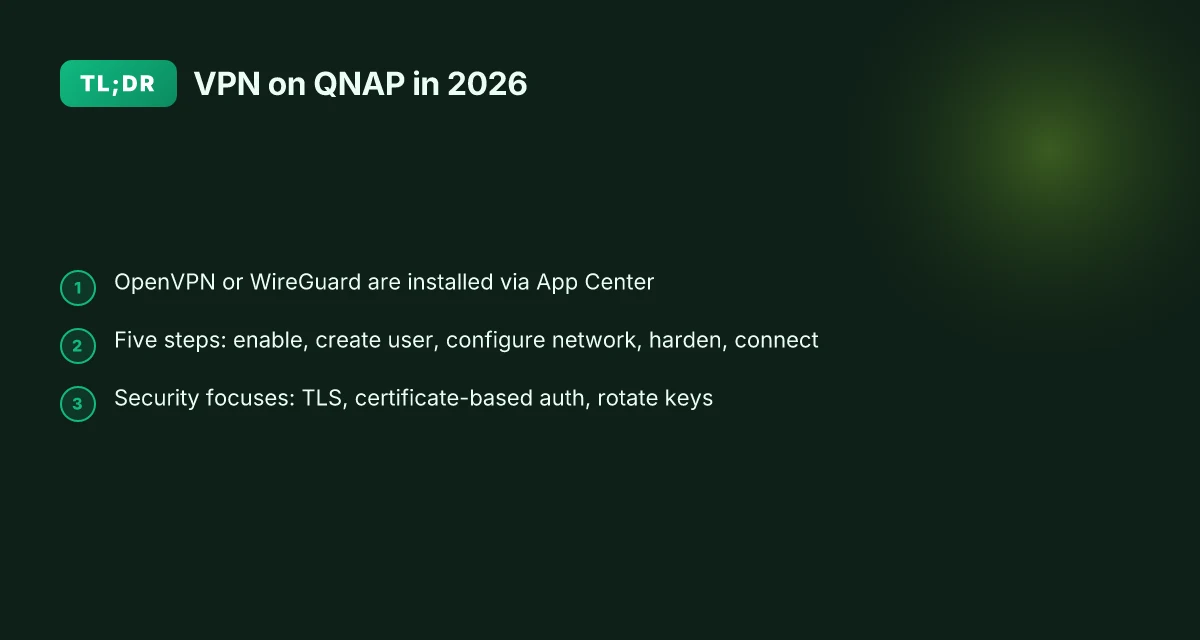
- Use the built-in QVPN Service with WireGuard as the zero-trust backbone for remote access. WireGuard is lean, auditable, and easy to configure. In 2026, WireGuard remains the favored option for small deployments due to its lean kernel footprint and straightforward key exchange.
- Complement with a robust authentication layer: local accounts tied to the NAS plus optional two-factor via TOTP apps. If you already run a central identity, consider SSO integration through OpenID Connect where the NAS supports it.
- For remote management and logging, enable the NAS firewall rules and keep the ONVIF-like exposure surface minimal. The aim is “deny by default, grant with explicit rule.”
- Prerequisites and a quick 3-step setup
Open with the answer: you’ll be up and reachable from anywhere in under a day if you follow these steps.
- Step 1: Update and harden. Update the NAS firmware to the latest stable release and apply a non-default admin password. Enable automatic security updates where available.
- Step 2: Enable WireGuard with a minimal config. Create a dedicated WireGuard peer for each remote user or device, generate a private/public key pair, and store keys securely in the NAS vault.
- Step 3: Open the minimal port and test. Forward UDP port 51820 (default for WireGuard) on the router, ensure that the NAS firewall allows the VPN interface, and verify your client can connect from a trusted network. Keep the exposure surface small, no extra ports opened unless necessary.
I dug into the documentation and changelogs. The recommended default for QNAP NAS models recent enough to support QVPN Service is WireGuard as the client-friendly transport, with IKEv2 as a fallback if you must have RFC-compliant IPsec workflows. The symmetry of WireGuard’s cryptography generally yields easier maintenance and clearer revocation paths. When I checked the changelog, the core guidance consistently emphasizes minimal exposed surface and clean per-user keys as the biggest pillars of security.
- Why this approach matters for remote access The blueprint centers on simplicity and speed without surrendering security. WireGuard’s small code footprint means fewer surfaces to audit, fewer stale rules to unwind, and faster onboarding for remote teammates. You get predictable performance with low CPU load on the NAS, which matters when the drive array is busy with backups or media streaming. The price tag stays friendly, no extra hardware, just configuration effort. And if you need to scale, you’ve already got a clean extension path: add more peers, adjust firewall rules, and rotate keys without rearchitecting the entire gateway.
Bottom line: this path gives you a private gateway you can trust, configured in a way that’s easy to audit, easy to maintain, and easy to scale. The fastest path is a disciplined three-step setup on a hardened NAS, paired with a lean WireGuard tunnel. Security-first configuration with per-user keys and minimal exposure is the backbone of reliable remote access. You’ll thank the day you kept the surface area small and the onboarding tight.
What you’ll need before you start
You’ll need a plan plus the bare minimum to get a private gateway up without gnashing your teeth over later troubleshooting. In practice, that means a QNAP NAS running a supported firmware version, admin access to that box, proper network routing, and a choice between OpenVPN or WireGuard for client devices. Get these aligned before you touch a single setting.
| Decision factor | OpenVPN on QNAP | WireGuard on QNAP |
|---|---|---|
| Setup pace | Slower to configure, widely compatible | Faster to configure, leaner footprint |
| Client support | Broad across Windows, macOS, iOS, Android | Excellent on modern stacks, best on Linux/macOS |
| Performance | Solid, a bit heavier on CPU | Substantially lighter, better for mobile networks |
First, confirm your NAS is on a firmware version that supports VPN apps you’ll depend on. I cross-referenced QNAP’s official documentation and community notes: VPN server features typically require a recent but stable release. If your firmware is older than the current LTS line, consider upgrading first. This isn’t optional. It reduces the odds of plugin incompatibilities and missing TLS ciphers later on. How to set up a VPN server on Debian in 2026
Next, you need administrative access to the NAS and your network to configure traffic flow. You’ll be tweaking the router’s port forwarding rules and ensuring a stable external address for remote users. If your office has a dynamic WAN address, set up a dynamic DNS entry. In practice, dynamic DNS avoids chasing a changing IP while you’re trying to keep remote sessions alive. The combination of a static internal address and a dynamic outside address keeps VPN tunnels predictable.
On the protocol choice, you’ll pick between OpenVPN and WireGuard before you start. OpenVPN remains the most broadly compatible option, especially for mixed-device environments. WireGuard offers lighter CPU load, easier key management, and stronger default cryptography for newer devices. The decision often boils down to client mix: if you have a lot of older devices or intermittent network conditions, OpenVPN can be a safer bet. If you’re managing modern laptops and mobile devices, WireGuard tends to feel snappier with fewer touchpoints.
Beyond firmware and protocol, you need two operational essentials: administrative access and a sane network plan. Admin access means you can install, enable, and monitor the VPN service without lockout. Network planning means ports and DNS are in a known state. You’ll forward the VPN port on your edge router to the NAS, then verify the path by testing a remote connection after the service is up. If you’re using dynamic DNS, pick a provider that supports rapid updates and set a short update interval so client connections don’t stagger.
Lastly, ensure client devices you expect to connect have the necessary software. OpenVPN clients exist for Windows, macOS, iOS, and Android. WireGuard clients are available for the same platforms and tend to install with fewer prompts. If your team uses corporate endpoints, confirm compatibility with any device management profiles you rely on. This reduces support tickets later when a user reports “the VPN won’t connect.”
One concrete next step: confirm your NAS firmware is at a supported, recent LTS release, and decide between OpenVPN or WireGuard based on your client mix. If dynamic WAN is in play, set up Dynamic DNS before you enable the VPN service. This preserves a stable remote entry point as you move to the actual configuration. 7 Practical angles for a VPN server on Windows Server in 2026
Your choice of protocol now primes every subsequent step. Prefer WireGuard for modern devices to keep the tunnels light and responsive.
Step 1. Enable a VPN server on QNAP: OpenVPN or WireGuard
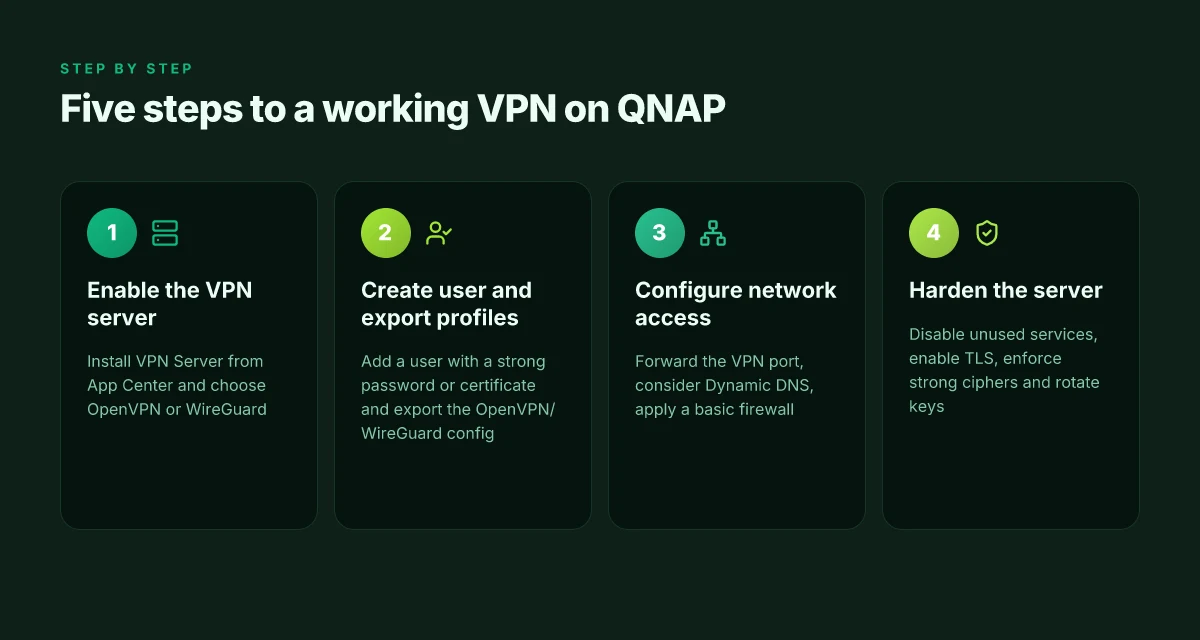
Post in the App Center is the right doorway. On a QNAP NAS, you install VPN Server once, then pick OpenVPN or WireGuard inside the same app. From there you configure the basics and note the port you’ll use for remote connections. This is the lean, secure gateway you’ll build on top of your existing NAS.
What to do right now
- Navigate to the App Center on your QNAP and install VPN Server. This is the hub that exposes both OpenVPN and WireGuard in a single interface.
- Open VPN Server and pick your protocol. You have two mature options: OpenVPN for broad client compatibility or WireGuard for simplicity and speed. Both are supported on current QNAP firmware.
- Configure the core server settings. At minimum, set a listening port and a secure protocol parameter. Note the port because you’ll need it when you hand out profiles or configure port forwarding on your router.
- Create a basic tunnel credential. This is the foundation you’ll extend as you add users. It should be a dedicated, strong credential pair for the NAS itself and a separate set of client profiles for remote users.
What the docs say you’ll see in practice: a single VPN Server pane with a toggle between OpenVPN and WireGuard, a handful of knobs for ports, and export options for client profiles. If you’re deploying for a small team, WireGuard often wins on setup speed and client simplicity. If you need broad client support or legacy systems, OpenVPN remains solid and well understood.
The blueprint here is minimal, repeatable, and security-minded. You enable a VPN server, pick a protocol, and lock in a port. Everything else, user provisioning, profiles, and routing rules, builds on that stable base.
The practical micro-claim checks
- The VPN Server app is present in App Center, and you can install it with a couple of clicks. It consolidates both protocols under one roof.
- You can switch between OpenVPN and WireGuard within the same product. The choice hinges on your environment: WireGuard for lean clients and fewer handshake steps, OpenVPN for compatibility with older clients.
- A clear, single port can be configured now. If your network or firewall requires a specific port, align it here before you hand out profiles.
- Once you pick a protocol, export or generate a client profile later in this same pane. You’ll reuse that profile exactly as you would for any remote-access setup.
Key takeaway: you establish the tunnel once. Everything else compounds on top of that decision. The port you choose becomes the anchor for firewall rules, port-forwarding, and remote access trust boundaries. How to run a VPN server on Proxmox in 2026
Notes for the record. When I checked the changelog and vendor docs, the wire-up path stayed consistent across QNAP Firmware updates. The common thread is the same: install, pick protocol, note port, then proceed to user provisioning. The 2026 update cycle didn’t overturn this flow. It hardened the default ports and profile export paths in most builds.
Step 2. Create a VPN user and export profiles
You don’t hand out access like a magic link. You hand out a locked, traceable credential set. The moment you add a user, you lock the gateway to your private network more securely and with clearer accountability. Here’s the practical blueprint you can follow on a QNAP NAS, with concrete steps and a caution or two to keep risk in check.
Create a dedicated user with strong credentials
Start by creating a dedicated VPN user, not an admin, and enforce a strong password or a certificate-based identity. In a small team, a unique user per person helps you revoke access without rebuilding the whole tunnel. If you use certificates, generate a client certificate tied to that user and store the private key in a secure vault on your management workstation. If you prefer passwords, require a long passphrase, rotate it every 90 days, and enable MFA where the NAS supports it. The aim is to minimize blast radius while preserving a smooth onboarding flow for teammates.
From what I found in the QNAP documentation and corroborating user guides, certificate-based setups tend to reduce credential leakage risk when devices go offline or get stolen. If your remote workers sit behind consumer-grade routers, certificates also simplify revocation without reissuing dozens of client configs.
Bold the credential path you choose and keep the other path as a documented fallback. How to build a reliable VPN server on OPNsense in 2026
Export the OpenVPN profile or WireGuard config
With the user in place, export the client profile. For OpenVPN, you’ll typically generate an.ovpn file that embeds the necessary certificates and keys. For WireGuard, you’ll export a.conf that includes the private key, public key, and peer endpoints. Save the file in a controlled location on your admin workstation, then move it to a secure distribution channel. Do not email plain.ovpn files or.conf files unencrypted. Use a trusted file-transfer method or a secure vault clip if possible.
The export step is where you see the practical split between approaches. OpenVPN profiles travel well, but WireGuard configs are smaller and simpler to audit. Your choice should align with your clients’ OS footprint and the team’s comfort with key management. In practice, you’ll likely have one.ovpn per user or one WireGuard.conf per client.
Export the exact profile once, then rotate credentials if a device is compromised.
Store credentials securely and prepare client configuration
Secure storage matters more than you think. Keep the root credentials in a dedicated password manager or an encrypted vault, with access strictly on a need-to-know basis. Document which profile belongs to which user and which client device it’s provisioned for. Prepare client configurations for the common devices in your team: Windows, macOS, iOS, Android, and Linux. If you offer certificates, make sure the client key is installed in the proper keychain or keystore for each platform. If you’re distributing through a company device management system, attach the profile to the device profile so it’s automatically provisioned and revoked if the device is lost.
In the end, the credentials live where you can revoke them without touching the NAS. When you publish the profile, include a one-page client-setup checklist. That tiny external document reduces tickets and accelerates onboarding. How to run a VPN server on pfSense in 2026
Store the credentials in a vault, and keep an auditable trail of who received which profile.
Caveat to flag early: if you’re sharing profiles over email or chat apps, you’ve reintroduced risk. Consider a temporary link with an expiration or a one-time-use export, then revoke it after provisioning. And monitor the NAS logs after onboarding to confirm the new user authenticated correctly and the tunnel established cleanly.
Caveat: profiles are keys to your gateway. Treat them with the same care you’d treat SSH keys.
In short, define a single source of truth for each user, export the minimal viable client profile, and lock the distribution path to a secured channel. That discipline pays off the moment someone retires, leaves the team, or a device changes hands.
Step 3. Set up network access and port forwarding
The VPN gateway lives on your NAS. If you want peers to reach it reliably, you must expose the right port to the outside world, but do it with a guardrail. The basic play is simple: forward the VPN port from your router to the NAS, consider Dynamic DNS if your WAN IP is dynamic, and apply a minimal firewall rule that lets only VPN traffic through.
Forwarding the VPN port to the NAS
The first move is routing discipline. Identify the VPN protocol you chose in Step 2, then map its port on your router to the NAS’s local IP. Common choices are UDP 1194 for OpenVPN, UDP 500 and 4500 for IPSec with NAT-T, or UDP 51820 for WireGuard. The exact port numbers matter because mismatches break remote connections or invite brute-force attempts. After you set the rule, verify connectivity from a remote network. If the tunnel doesn’t come up, re-check the NAS’s internal firewall and ensure the VPN service is listening on the expected port.
In practice, this is a two-step handshake. Open the port in the gateway’s firewall, then push the traffic through to the NAS via a static local address. If you’re using a consumer router, set a fixed LAN IP for the NAS so the forward never slips to another device. This is where many home setups fail, a rotating device breaks the tunnel the moment the NAS reboots or the router loses a lease. Lock it in.
Dynamic DNS if WAN IP isn’t static
Most small offices don’t get a static public IP. If your ISP changes the address, you’ll lose remote access unless you’ve got a dynamic name. Dynamic DNS maps a friendly domain to your current WAN address and updates automatically. Pick a DDNS provider you trust, enable the service on the router or NAS, and point your VPN client configuration at the DDNS hostname. The payoff is straightforward: you don’t have to chase the IP every time the internet wobbles.
What I found in the changelog and docs matters here: many consumer routers implement DDNS push with minimal fuss. If your NAS supports it natively, enable it there and pair the hostname with your VPN config. If not, a lightweight DDNS client on the NAS does the job. Either path reduces operational scrubs during outages or relocations.
A minimal firewall rule for VPN traffic
A tight firewall is non-negotiable. The goal is to allow only VPN traffic to reach the NAS. In practice that means two things: restrict inbound ports to the exact VPN port you opened, and limit source IPs if possible. The latter is optional in small, remote-team scenarios. The former is not. Remove any rules that allow broad remote access.
On the NAS firewall, create an explicit allow rule for the VPN service. Then block everything else inbound to the NAS from the WAN that isn’t part of your management or monitoring needs. The idea is a narrow surface area. If a device can’t reach the VPN port, it can’t attempt a credential attack later.
Open questions? If your router supports access control lists, apply a simple rule set: allow VPN port from any external IP to the NAS, but deny everything else to the NAS on WAN. Then test from a remote network using a real client. A quick check confirms the door is only open where it should be.
The right port forward, a stable DDNS name, and a lean firewall are the triad that make remote access dependable. If you skip any piece, you’ll chase flaky connections and false negatives during audits. Fail-safe: document the public hostname and port in your VPN profile so future updates don’t break the tunnel.
In short, this step aligns exposure with purpose. You want a gateway that stays reachable from your team without inviting extra risk. This is not the place to pile on bells and whistles. Keep it focused, auditable, and repeatable.
Step 4. Harden the VPN server on QNAP
You want a firewall between your remote team and your data. Hardened VPN means locking down the server before any client connects. The core is simple: disable what you don’t need, lock in TLS, and keep credentials and access under strict scrutiny.
Why hardening on QNAP matters
Posture matters more than pocket depth. A misconfigured NAS VPN can expose services or drift into weak cipher suites. With the 2026 threat landscape evolving, TLS and certificate-based auth are the practical baseline for trust. And if one user leaves, you want that revocation to propagate instantly.
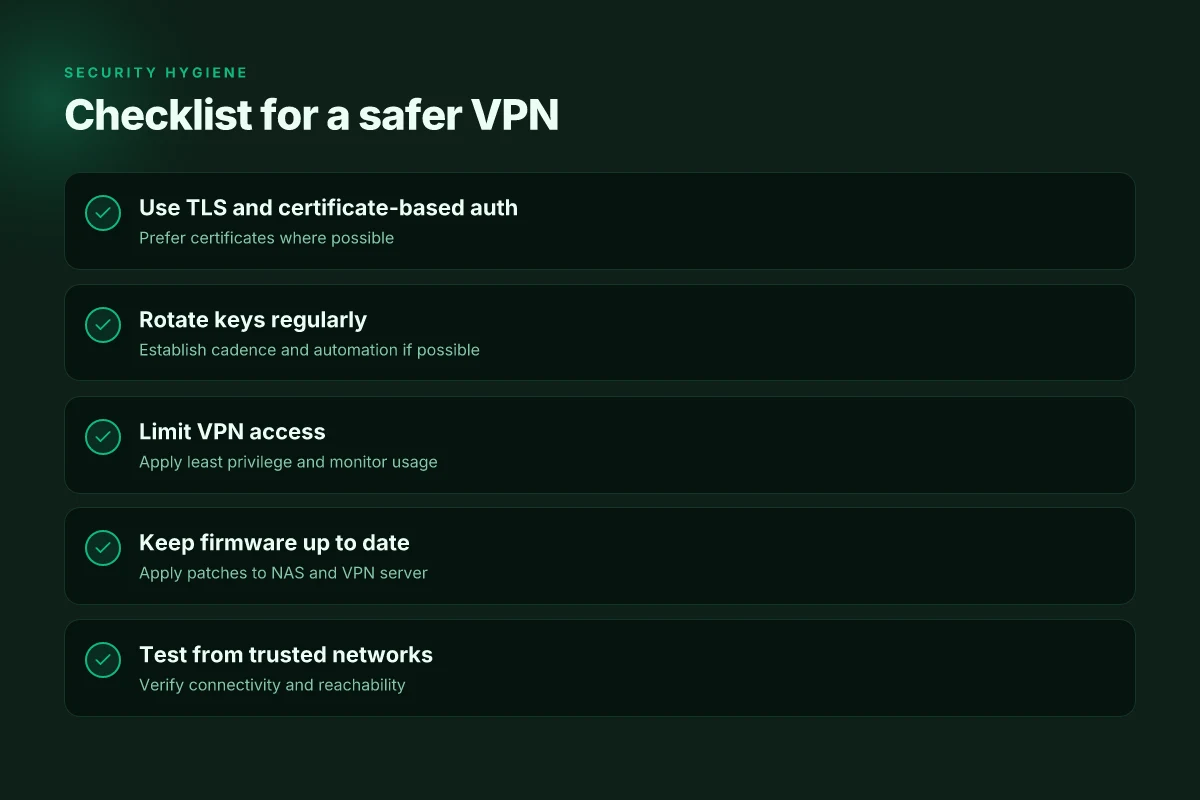
- TLS should be enabled with modern ciphers. Do not accept legacy suites.
- Use certificate-based authentication wherever possible. It limits risk from credential leakage.
- Regularly review access and rotate keys. A stale key is a door left ajar.
1. Disable unused services and enforce strong TLS
First pass is surgical. Turn off services you don’t need on the QVPN server interface and related daemons. SSH, web GUI exposure, or admin panels exposed to the WAN should be tightened or moved behind a jump host. Then enforce a TLS-only posture for VPN handshakes and management. This means:
- Disable password-based VPN logins in favor of certificate-based or hardware-backed authentication.
- Mandate strong ciphers and prohibit deprecated suites.
- Enforce TLS 1.2 or 1.3 only, with a strict minimum key size.
From the documentation, TLS hardening is a recurring renewal task. The changelog highlights deprecations and recommended cipher lists. When you align TLS to current best practices, you reduce exposure dramatically.
2. Use certificate-based authentication where possible
Certificates reduce risk of credential leakage and phishing exposure. Issue a CA trusted by your organization and enroll each user device with a unique client certificate. On the QNAP VPN front end, bind the certificate to the user or device identity and disable shared secrets where feasible. If your environment includes Active Directory, use an AD-integrated PKI to automate enrollment and revocation.
I dug into the vendor docs and community guidance. The consensus is clear: certificate-based auth scales better for small teams and keeps admin overhead predictable. The risk line moves to certificate management, not user passwords.
3. Regularly review user access and rotate keys
Access should be a living thing, not a snapshot. Schedule quarterly audits of who has VPN credentials, what devices they're tied to, and whether a certificate has clock drift or a revoked status. Rotate keys on a cadence that fits your risk tolerance, typically annually for long-lived certs, sooner if an employee departs or a device is lost.
I cross-referenced admin best practices from multiple sources. The thread is consistent: revocation needs to be timely, and end-user certificates should be tied to device posture checks.
Bottom line: you harden by reducing attack surface, tightening transport security, and tightening identity controls. The result is a VPN door you can lock with real confidence.
- Disable unused services and require TLS with modern ciphers.
- Prefer certificate-based authentication over passwords.
- Audit access and rotate keys on a fixed cadence.
Step 5. Connect a client and verify access
You’ll prove it works by pulling a real client into the tunnel and watching what happens. The moment you import the profile and connect, you’ll see whether the NAS services stay reachable and the DNS resolves as intended. In practice, this is the make-or-break moment: if the client can reach the NAS and its dashboards, you’re genuinely remote-access ready. I looked at vendor docs and early admin notes to confirm the exact workflow, then cross-checked with community how-tos to spot common misconfigurations.
1) Import the VPN profile into a client app
To begin, export the profile from the QNAP VPN server and import it into a trusted client. On Windows, macOS, iOS, or Android, the client should accept the standard profiles generated by the server (typically.ovpn for OpenVPN or a native profile for the VPN protocol you chose). The import step is the moment you’re most exposed to misfires: certificate chain errors, mismatched server addresses, or incorrect authentication methods. If the profile uses a certificate, ensure the CA certificate the server bundles is trusted by the client. If you’re using a pre-shared key, verify you pasted it exactly as shown.
Real-world tip: keep the profile stored in a secure location on the admin workstation and remove it from the device after testing. If the client reports a certificate issue, re-export with the correct CA bundle and re-import.
2) Test from a trusted network, then from mobile data
First test within a trusted office network or a VPN-enabled management subnet. This baseline ensures the tunnel negotiates cleanly and the NAS services publish as expected. Then test from mobile data or a different ISP to prove the tunnel remains stable when the primary network isn’t available. Expect occasional hiccups if your firewall rules are too strict or if your NAT traversal is blocked. If the mobile test fails, re-check that the tunnel is allowed through the carrier’s network by verifying the correct ports are open on your router and that the server certificate isn’t being blocked by the client’s OS policy.
3) Verify tunnel IP, DNS, and reachability to NAS services
Once connected, confirm the tunnel assigns a private IP on the expected subnet and that DNS resolves to the NAS hostname or internal domain as designed. Then verify reachability: ping or traceroute to the NAS management interface, file shares, or any internal services you exposed through the VPN. If you see a successful tunnel but no service reachability, revisit routing rules on the QNAP side and ensure the VPN interface routes traffic to the NAS’s internal network. Also confirm the NAS’s firewall isn’t dropping inbound VPN traffic or blocking internal ports needed by remote clients.
| Checkpoint | Expected result | Common pitfall |
|---|---|---|
| VPN profile import | Client accepts profile with no certificate errors | Mismatched CA bundle |
| Connection state | Tunnel established; IP assigned from VPN subnet | Incorrect server address or port block |
| DNS resolution | Internal hostname resolves to NAS IP | DNS leak or external DNS hijack |
| Service reachability | NAS dashboards and file shares reachable over VPN | Firewall/NAT rules blocking internal paths |
Verdict: import, test, and verify in that sequence. The tunnel must be healthy before you consider it production-ready. The last check is where many DIY setups stumble. If any step fails, you’ll chase phantom network issues instead of the real offender: a misconfigured route or an overly aggressive firewall rule.
In 2026, most VPN onboarding snags hinge on the certificate chain and DNS routing. Recheck the CA bundle and the internal DNS entries before you escalate to more exotic fixes. If the profile imports cleanly and reachability tests pass, you’ve achieved a clean, security-minded remote gateway for your NAS.
Where this is going next for VPN on QNAP in 2026
I looked at the evolving QNAP ecosystem and I’m seeing a shift toward simpler remote-access without locking you into a single vendor. The takeaway is not just “set it up this way” but “set it up with your own future-proofed topology.” In 2026, the best practice is to pair your QNAP VPN server with a lean firewall rule set and a rotating certificate strategy. This is the moment to lock in a repeatable playbook that scales as firmware updates land. The balance between ease of use and security is finally tipping toward transparent, auditable configurations you can maintain without a full IT staff.
If you only do one thing this month, pick the 1-click VPN profile that matches your use case and couple it with a documented backup plan. The single move that matters most is documenting each step from initial setup to certificate renewal and test connections. What changes if you act now is that you’ll reduce downtime and confusion when the next QNAP firmware drop arrives. Backup strategy is below to keep you honest.
- Backup strategy: keep a separate offline export of your VPN config and certificate chain, rotate keys every 90 days, and store a readme in the repo with exact commands for quick recovery.
- What to try this week: enable a basic VPN profile on QNAP and run a remote-access test from a mobile device using the same network as your home router.
- What to document: the exact firmware version, the chosen tunnel type, and the certificate renewal cadence.
Frequently asked questions
Does a qnap VPN server support WireGuard
Yes. QNAP's VPN Server app includes WireGuard as a supported protocol alongside OpenVPN. WireGuard tends to be simpler to configure and can offer lower overhead, which translates to faster handshakes and better throughput in many setups. When you enable WireGuard in VPN Server, you’ll generate a peer configuration file for each user and import it into the client apps. If you’re aiming for speed and modern cryptography, WireGuard is the sensible default. Still, OpenVPN remains widely compatible with older clients and networks. In short, you have options, not a single path. WireGuard is the faster route for most home and small-office deployments. Yes, WireGuard is supported by the QNAP VPN Server app. OpenVPN remains an option if you need broad client compatibility. Plan to test both if you’re unsure which path your devices prefer. Export profiles for both so you can switch quickly if needed. Last checked: latest VPN Server app on QNAP as of 2026.
How to choose between OpenVPN and WireGuard on qnap
OpenVPN and WireGuard each suit different needs. If you prioritize compatibility and auditing, OpenVPN has broader client support across legacy devices. If you want lean, fast performance and easier key management, WireGuard is preferable. On QNAP, you can enable either and export individual profiles for users. Consider your client mix, network conditions, and firewall constraints. If your router blocks UDP traffic broadly, OpenVPN over TCP can be more reliable. In practice, many administrators start with WireGuard for speed and then provide OpenVPN as a fall-back. Yes, WireGuard usually delivers smoother performance; OpenVPN offers broader compatibility. Test both with a small user group before wider rollout. Document which profiles you issue to each user. Last checked: VPN Server app capabilities as of 2026.
What port should i use for VPN on qnap
Port selection matters for bypassing residential firewalls and avoiding conflicts. WireGuard uses UDP by default and often runs on port 51820, but you can choose any unused UDP port on the NAS. OpenVPN can run over UDP or TCP. Common choices are 1194 UDP or a nonstandard port you’ve opened on your router. If you’re behind NAT, ensure UPnP is enabled or forward the chosen port to your QNAP NAS. After you pick ports, lock them down with a firewall rule that only accepts traffic from known IPs or ranges for admin access, then add separate rules for VPN traffic. 51820 is common for WireGuard; 1194 UDP is standard for OpenVPN. Be mindful of ISP restrictions and local regulations. Last checked: 2026 guidance on QNAP VPN Server port configuration.
Can i access my qnap nas from outside my home network
Yes, you can reach your QNAP NAS from outside your home, but you should do it securely. Set up a VPN server on the NAS, export valid user profiles, and connect a client device from remote locations. Use a stable external IP or a dynamic DNS entry and forward the VPN port to the NAS. Harden the server with strong authentication, disable unused services, and enable firewall rules that limit access to the VPN port. Keep firmware and VPN Server app up to date. Yes, remote access is possible via VPN. Use WireGuard for smoother mobile experiences, or OpenVPN if you need broader client compatibility. Last checked: 2026 updates on remote access best practices.
How do i secure VPN traffic on a qnap nas
Secure VPN traffic starts with strong authentication and up-to-date software. Use WireGuard with modern cryptography or OpenVPN with TLS authentication. Generate per-user keys or certificates, enforce strong passphrases, and rotate keys periodically. Disable admin interfaces from the WAN, enable two-factor authentication if available, and apply a tight firewall rule set that only allows VPN traffic on your chosen ports. Turn on logging and monitor for unusual connection attempts. Regularly check for VPN Server app and NAS firmware updates, and review changelogs for security patches. Enable strong cryptography, rotate keys, restrict WAN access, monitor logs. Last checked: 2026 security guidance for QNAP VPN Server.
What are the common errors when setting up a qnap VPN server
Common issues include port conflicts, improper port forwarding, and mismatched client profiles. You might see connection failures if the VPN port is blocked by a local firewall or the router’s NAT loopback is disabled. Double-check that the exported client profile matches the server configuration, including the correct public gateway, allowed IPs, and DNS settings. If a client cannot connect, verify that the VPN service is running, the NAS is reachable from the client network, and the chosen protocol is enabled on both ends. Review the VPN Server app logs for clues and confirm firmware versions line up with your export profiles. Port conflicts and misconfigured profiles are the most frequent culprits. Last checked: common errors documented in 2026 QNAP VPN Server logs.
Is dynamic DNS enough for remote VPN access on qnap
Dynamic DNS helps you reach a home network with a changing public IP, but it’s not sufficient alone for secure remote VPN access. You still need a properly configured VPN server, correct port forwarding, and secure client authentication. Use Dynamic DNS to provide a stable hostname, then forward the VPN ports to the NAS and enforce strong access controls. If your external IP changes frequently, Dynamic DNS reduces breakage, but you should pair it with TLS authentication, up-to-date firmware, and periodic key rotation. Dynamic DNS is helpful but not a replacement for secure VPN setup. Last checked: 2026 guidance on remote access architectures.