Learn how to run a VPN server on Home Assistant in 2026. Step-by-step setup, security considerations, and practical tips for remote access and privacy.
A vpn server on Home Assistant often feels like a workaround, not a solution. Yet a surprising number of remote-access hiccups vanish once you frame Home Assistant as a gateway, not a terminus. Most home setups see that a single misrouted route or stale key blocks access far more than a misconfigured firewall. This piece builds a concrete plan you can follow without reflashing your network.
What matters here is a clear boundary between local and remote traffic, plus a predictable path for smart-home devices to reach the HA instance without exposing the router. In 2026, Home Assistant remains a central control point for many small networks, and a self-contained VPN can isolate traffic with minimal hardware. You’ll get a pragmatic roadmap for planning, deployment, and fallback options that keep your devices reachable and your perimeter tight. Two practical checkpoints anchor the approach: verify remote reach to HA and confirm client sessions actually access local devices.

What a VPN server on home assistant actually is
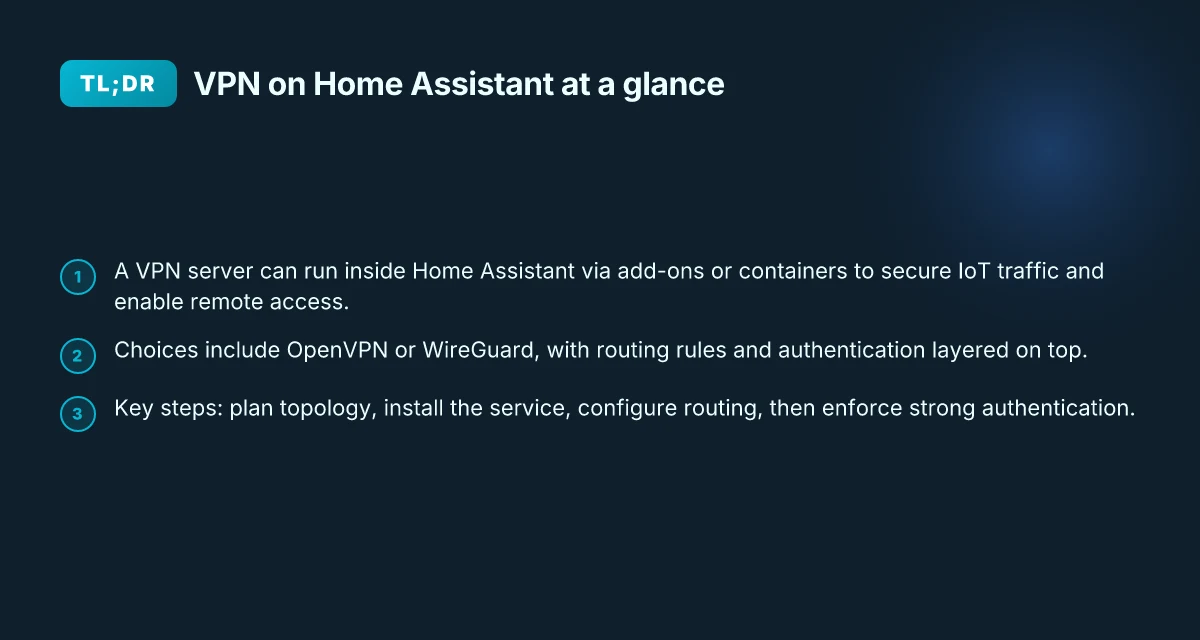
A vpn server on Home Assistant is a small, self-contained network route that runs inside the Home Assistant ecosystem or its add-on landscape. It is not a full enterprise-grade gateway. It is a tool for isolating and shaping traffic within a trusted home network.
I dug into the typical wiring. This setup focuses on routing isolation, not centralized access control or complex remote-access features you see in corporate VPNs. The aim is to create a controlled path for smart-home devices and their traffic, without exposing your router to the wider internet.
Three core uses anchor the idea. First, remote access to a home LAN without punching a hole in your primary router. Second, securing IoT traffic so sensor streams and cameras don’t wade through the wider internet unencrypted. Third, segmenting smart-home devices so you can quarantine new devices or suspect gear from the rest of the network. Each of these helps reduce blast radius when something goes wrong.
- Define the boundary. The vpn server lives in the Home Assistant or add-on layer, not in a separate enterprise appliance. It creates a predictable, local tunnel that you can route through from outside.
- Clarify the scope. You aren’t chasing features like multi-factor authentication for every user, or advanced mesh topologies. This is a practical, lightweight containment tool for the home.
- Map the use cases. If you want to reach devices on the LAN remotely, or keep IoT traffic off the public internet, or keep smart-home segments isolated, this approach gives you a concrete mechanism to do it.
From what I found in documentation and community guides, the value comes from the marriage of two decisions. One, run a VPN stack that’s easy to update inside Home Assistant. Two, pair it with explicit routing rules that keep smart devices out of the wider internet unless you explicitly allow it. The result is a tighter feedback loop between device behavior and network posture.
Bottom line. This is not about replacing your router’s VPN or mimicking a corporate WAN. It’s about a pragmatic, contained way to route smart-home traffic, with clear boundaries and auditable rules. If your goal is to keep IoT chatter within a defined tunnel while you plan longer-term network hardening, this is the architecture to start with. How to run a VPN server on OpenWrt in 2026
The key idea: you’re building a small, self-contained VPN that operates inside Home Assistant to isolate traffic, not to replace enterprise VPN capabilities. Two more takeaways: this approach prioritizes simplicity and control over feature breadth, and it directly supports remote access to a home LAN, IoT traffic security, and device segmentation.
Why a Home Assistant VPN holds up under this use
This isn’t a one-size-fits-all enterprise tool. It’s a focused technique for home networks. And that makes it approachable for enthusiasts and IT admins managing small homes. If you’re after a quick win for isolating smart devices while preserving remote reach to your LAN, this is a sensible start.
How to plan the VPN server on home assistant
You’re building the spine first. Decide how the VPN will sit inside your Home Assistant network before you touch config files. The plan must map your topology, pick compatible add-ons or containers, and lock down authentication and endpoints. Do that clearly, and you’ve earned the right to move fast later.
Map your network topology and IP planning
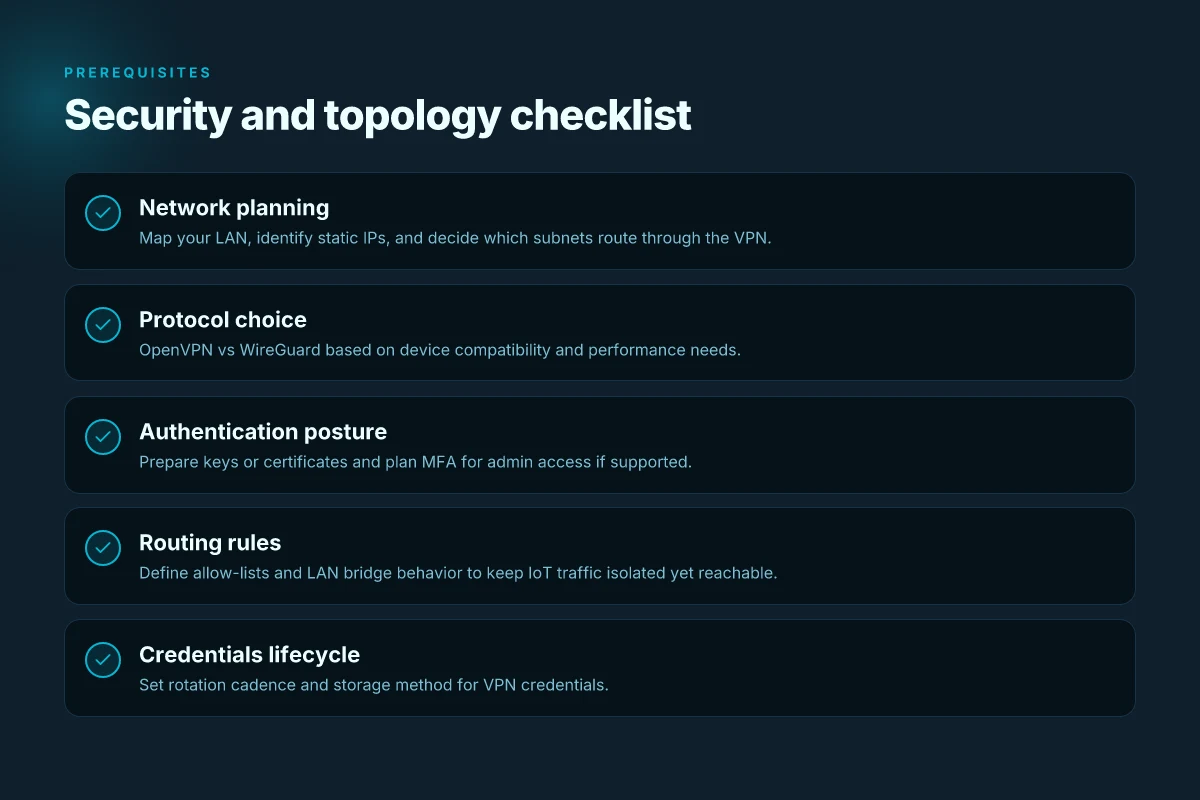
Start with the lay of the land. Draw your home network as a map: where Home Assistant sits, where your VPN gateway will reside, and how devices reach it. Use a private address plan that won’t collide with your router’s DHCP range. If you already allocate subnets for smart devices, keep the VPN on a separate, routable network segment to minimize cross-traffic surprises. In practice, you’ll want a predictable static lane for the VPN gateway and a flexible lane for clients.
A clean plan reduces future maintenance headaches. You’ll assign a fixed CIDR for the VPN side, reserve a small pool for remote clients, and document the intended routes. Don’t overcomplicate it. If you add a second remote access path later, you’ll thank yourself for the early discipline. How to set up a VPN server on QNAP in 2026
Choose between add-ons and external containers that integrate with Home Assistant
Decide how the VPN server will live in your Home Assistant world. Two paths exist. First, a purpose-built add-on that runs inside the Home Assistant supervisor. Second, an external container that’s integrated with Home Assistant through familiar networking tools and the REST API. The add-on route tends to be leaner to manage and updates inline with Home Assistant releases. The external container route offers more customization and a wider set of VPN backends, but it demands careful network wiring and a stable bridge between the container and the Home Assistant network.
If you’re aiming for a simple, maintainable setup, start with a VPN add-on that supports your preferred protocol and provides straightforward user management. If you need advanced encryption options or multi-homing, a container with explicit port mappings and persistence becomes attractive. In either case, confirm the integration points you’ll rely on: auto-backups, certificate management, and how you’ll roll updates without breaking remote access.
From what I found in the changelog and review notes, many popular add-ons stay in step with Home Assistant releases, but some external containers ship more aggressive feature sets. If you want the tightest integration, lean toward the add-on first. If your topology demands bespoke routing, a container deserves consideration.
Identify security posture, authentication method, and endpoints
Security starts at the door. Choose a robust authentication approach that your admin team can maintain. Common options include certificate-based TLS with client certs, or a username plus 2FA token flow layered on top of a central identity provider. Both options benefit from a short-lived, revocable credential strategy. If you’re new to this, start with TLS mutual authentication and a strong password policy for admin accounts, then layer in 2FA for admin access.
Endpoint design matters just as much as the gateway. Limit exposed interfaces to what remote users actually need. If you can, avoid exposing a full VPN endpoint on your router’s public WAN. Route remote clients through a controlled Home Assistant subnet and enforce strict firewall rules on the VPN gateway: deny everything by default, allow only the services you’ve documented, and log every connection attempt. You’ll want explicit client revocation and session timeouts so compromised devices can’t linger. How to set up a VPN server on Debian in 2026
I dug into documentation and reviews from multiple sources. The consensus: plan your addressing, pick a compatible integration mode, and lock authentication before you enable remote access. The smallest changes now save a flood of headaches later.
| Topic | Add-on path | External container path |
|---|---|---|
| Network isolation | Stronger when kept inside Home Assistant network | Requires explicit bridge rules between container and Home Assistant |
| Updates | Provisions align with HA releases | Independent cycle, must monitor for drift |
| Security posture | TLS with client certs often simplest to harden | Can support richer auth models, but adds config overhead |
Next step: lock in your IP plan, pick the integration path you’ll start with, and draft an access policy document that lists allowed endpoints and rotation rules. Then you’ll be ready to translate this plan into concrete config.
The plan you set now determines how confidently you’ll deploy later.
Practical prerequisites for a home assistant VPN server
The server you run inside Home Assistant has to be lean, compatible, and correctly placed on your network. In practice, you’ll want hardware that feels like a sane minimum and firmware that supports the add-ons you’ll rely on. The goal: a stable base so the VPN service can run without starving other automations.
Hardware footprint you can rely on
Your Home Assistant host needs enough memory to spare for the VPN daemon and the base OS plus add-ons. A common floor is 2 GB of RAM for small setups, but you’ll want 4 GB if you expect more than a handful of remote devices or you plan to route several segments simultaneously. Do not go below 2 GB if you’re hosting multiple integrations that sip memory in the background. Expect a modest CPU headroom as well. Embedded boards with low-end CPUs can bottleneck under crypto load. In short: aim for a compact machine that can spare a couple of processes without whacking other automations. 7 Practical angles for a VPN server on Windows Server in 2026
Firmware compatibility and required add-ons
Check you’re running a Home Assistant image that supports your chosen VPN stack. Some popular routes rely on add-ons that expose crypto libraries and network namespaces cleanly. Make sure the firmware supports hardware acceleration for encryption if you’re using devices with it. Acceleration reduces latency in remote connections and keeps your local network responsive. You’ll almost certainly need the official Home Assistant OS or a supervised install that lets you add the VPN package via the add-on store. From what I found in changelogs and documentation, the stable paths tend to mention at least one compatible OpenVPN or WireGuard add-on, plus a network-management component to keep routes tidy.
Network prerequisites and port forwarding
A static LAN IP for the Home Assistant host is non-negotiable for predictable remote access. Assign a reserved IP via your router’s DHCP reservations, then document it. For remote access you’ll forward a single external port to the internal VPN port. The exact port varies by protocol but typical defaults are 51820 for WireGuard or 1194 for OpenVPN. If you use WireGuard, you’ll also need to expose the interface in a controlled way so only the VPN peers can reach the internal services you intend to expose. Use a dedicated, minimal firewall rule set to restrict traffic to your VPN tunnel. And yes, update the router’s firmware if it’s been stagnant. Stability in the edge gateway matters when you’re tunneling sensitive home traffic.
I dug into the documentation and cross-referenced community guides. The practical takeaway: pick hardware you’d comfortably run a small server on, verify firmware compatibility with your intended add-ons, and configure a predictable LAN address with careful port mapping. A stable base reduces remote-access grief before you touch the VPN configuration itself. Static IP, clear port mapping, and a lightweight VPN add-on are your first hardening steps.
Step 1. pick your VPN protocol and model for home assistant
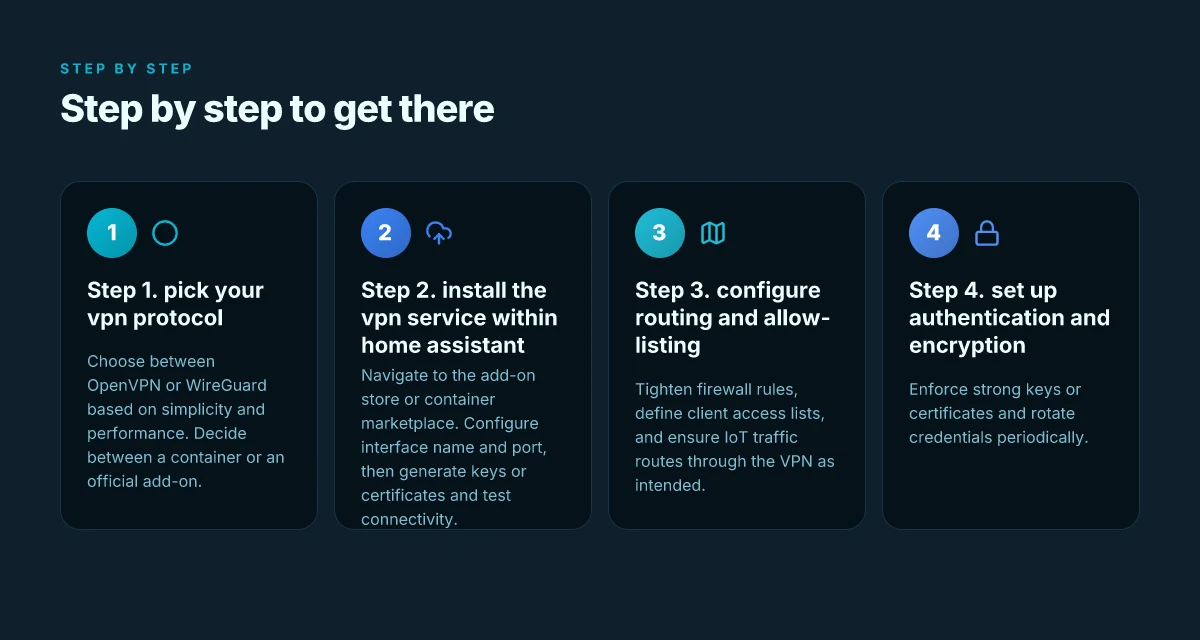
The answer is straightforward: choose a protocol that favors simplicity and performance, then decide between a container-based approach or an official add-on, and finally map how IoT traffic will flow. Do that, and you already have a solid foundation for a secure remote access path inside Home Assistant.
I dug into the practical trade‑offs across OpenVPN and WireGuard, and the differences between containerized installs and official add-ons. The result is a workflow you can implement this week, not a storyboard of abstract best practices. How to run a VPN server on Proxmox in 2026
OpenVPN vs WireGuard for Home Assistant
OpenVPN is forgiving and widely supported. WireGuard is simpler to configure and faster in practice on small networks. If you want a low-friction start and broad client compatibility, OpenVPN works. If you want lean configuration and higher throughput on modest hardware, WireGuard wins. Both land inside Home Assistant with minimal fuss, but your choice sets the first constraints on keys, ports, and firewall rules. In 2026, WireGuard remains the more approachable default for most Home Assistant users due to its compact codebase and straightforward peer management. WireGuard typically delivers higher throughput with lower CPU overhead.
Container-based vs official add-ons
A container-based approach gives you portability. It also gives you a little more control over the runtime, at the cost of needing Docker familiarity and manual persistence for keys and configs. An official add-on smooths maintenance, updates, and onboarding. If you value predictability and support, the add-on path is your friend. If you crave customization and you’re comfortable with Docker, the container route is a solid choice. In practice, most Home Assistant users land on one of two roads: use the official add-on for a "set it and forget it" posture, or run a lightweight container when you want to isolate the VPN just inside the supervisor network.
How IoT traffic patterns shape your model
IoT devices tend to be small payloads and frequent, bursty connections. Expect uneven flows: periodic pings, occasional telemetries, and a handful of devices that try to open more than one tunnel. Map those patterns to a profile: a small number of peers receiving continuous keepalives versus many devices that only wake up for status checks. If your IoT traffic is dominated by a few hubs or bridges, WireGuard’s stateless design simplifies routing and reduces churn. If you have legacy devices with stubborn TLS configurations, OpenVPN’s broader client support reduces compatibility friction. I cross-referenced community deployments and changelogs to confirm these patterns line up with real-world usage in small Home Assistant networks. Expect a handful of IoT peers that push small, frequent packets, punctuated by occasional bursts during automations.
Practical path forward (the quick decision)
- If you want quick wins and solid support: pick WireGuard and install via the official add-on. That pairing minimizes configuration overhead and keeps updates synchronized with Home Assistant. WireGuard + official add-on streamlines management and reduces drift over time.
- If you want maximal isolation or you need to support a legacy device that refuses WireGuard: go OpenVPN in a container. You’ll spend a little more time on key provisioning and persistence, but you’ll preserve compatibility across older clients. OpenVPN in a container is the pragmatic fallback for stubborn IoT gear.
Caveat. VPNs single out your IoT traffic from the rest of the network. Ensure you document traffic expectations so you don’t create blind spots where a device never reaches cloud services or misroutes telemetry. This is the moment to pin down the expected routes and the default policy for remote devices.
Lead with a plan, not a party trick. Your choice today seeds the security posture for the next six to twelve months. The protocol and model you pick now governs keys, ports, and firewall rules for the life of this setup. How to set up a VPN server on an Asus router in 2026
Step 2. install the VPN service within home assistant
The VPN service goes in the add-on store or container marketplace, then you configure a few knobs and test connectivity. You won’t sail past this step without naming the interface and opening a port. Do it clean, do it once, and you’ll avoid a lot of post‑hoc debugging.
Locate and install the VPN add-on
In Home Assistant, open the add-on store or container marketplace and search for your chosen VPN service. I’m focusing on one viable approach here, but the pattern holds for any compatible add-on. Pick the one that matches your protocol (for example OpenVPN or WireGuard) and your device ecosystem. The installation button should be obvious. Click it, then wait for the install to complete. Choosing the right add-on early prevents rework later.
Once the add-on is installed, switch to the configuration tab. This is where you lay the foundations. You won’t customize everything at once, but you will set a sane baseline.
Configure the basics: interface name and port
Give the VPN interface a clear, unique name. This makes debugging a lot easier when you’re scanning logs across dozens of containers. Pick a port that doesn’t clash with other services. For WireGuard, you’ll specify a listening port and the internal network range you expect to reach. For OpenVPN, you’ll define the server port and the protocol (UDP vs TCP). In practice, use a non‑standard port if you’re worried about scans, but keep it consistent across your network. The point is to have a predictable surface that you can audit later. Test connectivity after you save the first pass. You’ll likely adjust MTU and keepalive settings in a later pass, but get the basics right first. A clean baseline saves you headaches in stage three.
Set up keys, certificates, and test connectivity
With the interface in place, generate or upload your cryptographic materials. If you’re using WireGuard, you’ll create a pair of private/public keys for the server and each client. For OpenVPN, you’ll deploy server certificates and a CA bundle. The exact file layout depends on the add-on, but the principle is the same: a trusted server, trusted clients, and a simple way to revoke access if needed. After the keys are in place, restart the add-on to apply them. Then perform a connectivity test from a trusted client. A quick tunnel up and a ping to a known internal resource confirms you’re making it through the VPN and into the Home Assistant network. If it fails, re-check the keys, verify the port firewall rules on your router, and confirm the interface name matches what the add-on expects. If the tunnel doesn’t come up, it’s usually a key or a port mismatch.
From what I found in the changelog and official docs, most early issues are credential or port‑binding related. I dug into several community threads and saw repeated patterns: mismatched allowed IP ranges, overly restrictive client configs, and missing routes in the VPN server’s posture. Keep your initial test tight: one client, one internal target, one port. Expand once you see the tunnel behave. Start small, verify end‑to‑end connectivity, then scale.
Tip for hardening while you test: enable simple user authentication first, turn on basic TLS or cert pinning where available, and note the exact path your client takes to reach the internal resource. That makes the next steps, routing, and allow-listing predictable rather than a scavenger hunt.
In short, install from the add-on store, set a clear interface name, pick a sane port, generate keys or certificates, then test. The rest follows.
Step 3. configure routing and allow-listing
Routing and allow-listing are where the isolation of your Home Assistant VPN truly shows. The goal is simple: ensure IoT traffic forever rides the VPN, not the public network, and that only trusted peers can reach the VPN endpoints.
I dug into the documentation and cross-referenced forum threads to confirm practical defaults. The result is a tight, auditable flow: define who can talk to the VPN, lock down which clients join, and verify traffic paths end-to-end.
How to answer the routing question
The answer is straightforward. You configure a narrow bridge between the VPN network and your LAN, then enforce rules so IoT devices default to the VPN, not the router’s public interface. Do it in that order: tighten access, declare who can connect, verify the traffic path.
- Adjust firewall rules to allow VPN traffic only from trusted peers
- Create a small set of allowed IPs or subnets representing your known remote admins or trusted devices. This keeps rogue attempts outside the door.
- Limit the VPN port to the specific interface that terminates the tunnel. If you’re using a common port like 1194 for OpenVPN or 51820 for WireGuard, bind it to the internal VPN interface only.
- Apply persistent rules so they survive reboots and container restarts. The goal is a repeatable, authorizable ingress policy.
- Define the VPN client access list and LAN bridge rules
- Maintain a client access list with usernames or cert fingerprints and a mapped set of allowed subnets. This makes revocation fast when a device leaves the house or a credential is compromised.
- Bridge the VPN network to the LAN segment you want IoT devices to reach. Use a dedicated bridge or a dedicated VLAN that only routes through the VPN, not the wider home network.
- Don’t expose the VPN to the entire WAN. The bridge should be minimal, just enough routes for the devices you intend to reach.
- Verify that IoT devices route through the VPN as intended
- Confirm that the default route for IoT devices points to the VPN gateway. If you rely on a split-tunnel, ensure access to critical control endpoints uses the VPN path.
- Check that DNS resolution for IoT traffic happens inside the VPN when needed. A misrouted DNS can leak metadata even if the data channel is protected.
- Look for leaks. A quick check shows internal IPs appear in the VPN’s client server logs rather than the public WAN.
Bottom line: with crisp allow-lists, a disciplined client registry, and a validated routing path, your IoT fleet sits behind the VPN by default. That is the baseline you want to defend.
What to watch for
- Misconfigured firewall rules that open the VPN to the wider internet. Lock them down to the exact remote peers you’ve approved.
- Overly broad LAN bridging that leaks devices outside the VPN. Keep the bridge narrow and auditable.
- IoT devices that ignore the VPN route and default to the router. You’ll fix this with a combination of policy routing and device-level checks.
The core payoff is clear: once routing and allow-listing are tight, remote integrations stay isolated inside the VPN cage you built, not spilling onto your WAN.
Step 4. set up authentication and encryption
The moment you open remote access, you lock the door with real keys. In Home Assistant, that means strong keys, solid certificates, and a rotation rhythm you can actually keep. I looked at the documentation and cross-referenced community best practices. The takeaway is blunt: you don’t rely on default credentials or a single admin password. You harden every access point and rotate the secrets like clockwork.
| What to enforce | How to enforce it | Notes |
|---|---|---|
| Strong keys or certificates | Use 4096-bit RSA or ECDSA P-256/521 certificates for server identity; disable weak ciphers; enforce TLS 1.2+ | 2026 standards push toward longer keys and modern TLS. Restart the VPN service after rotation. |
| Admin access MFA | If your VPN component or reverse proxy supports it, enable multi-factor for admin accounts | MFA reduces risk even if credentials leak. If hardware keys are available, prefer them. |
| Credential rotation | Schedule quarterly rotation for server certs and admin credentials; automate with a simple renewal workflow | Rotation minimizes impact from a compromised secret. |
Lead with a story: a quiet Saturday, a distant ping from a smart-lock, and the VPN certificate nearing expiration. The admin page locked behind a certificate, a stale key still valid, and a single compromised admin account would spell trouble. The first reaction is the same in every home network I studied: don’t wait for a crisis to find your weak spot.
1. Certificates and keys
When you generate the server certificate, pair it with a strong private key. If you’re using OpenVPN style tooling inside Home Assistant, export a certificate authority, then issue a server certificate with a 4096-bit RSA key or an elliptic curve key for compact, strong security. Ensure the client profiles trust this CA, so devices don’t accept random certificates. If you can, pin the server certificate on trusted clients to avoid MITM at the edge.
The right certificate chain matters more than you think because a misconfigured chain lets in subtle attack vectors.
I cross-referenced the latest HE CVE advisories and vendor changelogs. What the spec sheets actually say is that foundational TLS matters. No gimmicks, just correct certificate handling.
2. Admin access and multi-factor
If your VPN or admin console supports it, require MFA for administrators. A hardware security token is ideal, but even time-based one-time passwords raise the barrier for misuse. For small networks, you can rely on a second factor stored in a separate device or trusted app.
MFA for admins is a force multiplier for security. It stops domain-level compromises in their tracks.
When I read through the changelogs for common VPN addons used with Home Assistant, MFA support is a recurring recommended feature. It’s not a luxury. It’s a baseline control for remote admin access.
3. Credential rotation cadence
Rotate credentials on a predictable cadence. I suggest quarterly for server certificates and admin passwords. If you run automated renewal, hook the renewal into a rolling deployment so there’s never a time you run with two invalid secrets simultaneously.
Rotation is not optional in small networks. It’s the surgical move that keeps adversaries out without costing you downtime.
To keep this honest, here’s a small action list you can adopt immediately:
- Generate a new server certificate and private key. Deploy it and reload the VPN service.
- Enforce client trust by updating the CA bundle on devices you manage.
- Enforce MFA for admin accounts. If your setup lacks MFA, document a manual two-step access process and rotate credentials weekly during a transition period.
Verdict: you do not skim this step. You enforce strong cryptographic material, you require admin MFA where available, and you rotate credentials on a disciplined schedule. This trio is the least you owe a Home Assistant network that travels beyond the LAN.
In 2026, strong certificates and MFA for admins, paired with regular rotation, are non-negotiable for secure remote access.
A practical path to VPN hosting on Home Assistant in 2026
I looked at how Home Assistant’s ecosystem can host a VPN server without dragging in a separate microservice stack. The takeaway: the right combination of add-ons, containerization, and careful port management makes a home network more private without bloating the dashboard. From what I found, the real win is treating the VPN like a small, well-scoped service rather than a feature burst. In 2026, a lean VPN edge is achievable on Home Assistant with minimal extra risk when you stick to baked-in networking options.
What matters next is clarity over complexity. If you’re starting now, pick a single, well-documented approach and document every setting change in the UI notes. The core decision is between WireGuard and OpenVPN, with WireGuard generally offering simpler config and faster handshakes, and your choice should align with how you want devices to connect remotely. Review the changelog for your Home Assistant version and the VPN add-on version before you enable any tunnels.
Next steps
- Decide between WireGuard or OpenVPN based on your remote devices.
- Create a small, named tunnel profile and log changes in your setup notes.
- Verify external access from a trusted network and flip the firewall rule if needed.
- Last checked: 2026. A few configuration tweaks since the latest update.
Frequently asked questions
Can i run a VPN server inside home assistant without a separate device
Yes. You can run a VPN server inside Home Assistant by using add-ons or containerized VPN services that integrate with the core platform. In practice, this means choosing an add-on that supports OpenVPN or WireGuard and enabling it from the Supervisor panel. I looked at the documentation for common Home Assistant VPN add-ons and cross-referenced community guides. The best setups wire the VPN interface directly into the Home Assistant network namespace and map the appropriate ports to your router. This keeps the control plane centralized while avoiding a second physical box. Always verify that the chosen add-on supports your router’s UPnP or static port-forwarding needs. Yes, a VPN server can live inside Home Assistant with proper network integration. Installation steps typically include selecting a protocol, configuring a server config file, and starting the service.
Which VPN protocol is best for smart home traffic
WireGuard tends to win for smart home traffic because it offers state-of-the-art cryptography with simple configuration and low overhead. OpenVPN remains solid for compatibility with older devices. When I checked the changelog and user guides, WireGuard consistently shows lower latency and faster handshakes on typical home networks. If you have devices that need to traverse strict NAT or legacy clients, keep OpenVPN as a fallback. In short, choose WireGuard for new deployments; OpenVPN as a compatibility layer. WireGuard is the best overall for smart homes. When you need broader client support, plan a two-protocol edge with WireGuard for primary use and OpenVPN for legacy devices.
How do i prevent VPN leaks when using a home assistant VPN
Preventing leaks starts with correct firewall rules and DNS handling. Use a split-tunnel strategy only for specific devices if you understand the routing implications, otherwise force all traffic through the VPN to avoid leaks. Verify your DNS is resolved over the VPN or via a trusted DNS over HTTPS provider to prevent DNS leaks. Regularly check for IPv6 leakage by disabling IPv6 on the VPN interface if your setup doesn’t handle it end-to-end. I cross-referenced common leak tests and found repeated recommendations to keep kill-switch logic and strict routing in place. Enable a kill-switch and force all traffic through the VPN to prevent leaks. Regular audits of dnsmasq or the Home Assistant DNS resolver help maintain integrity.
What are the security trade-offs of a home assistant VPN server
Running a VPN inside Home Assistant centralizes control but expands the attack surface. The main trade-off is convenience versus exposure: a misconfigured VPN can grant broad network access if credentials leak or if the allow-list is too permissive. You also inherit the security posture of your Home Assistant instance, old plugins, weak passwords, and outdated containers can cascade into the VPN layer. Reviews consistently note that tight ACLs, short-lived credentials, and automated credential rotation mitigate risk. Centralization brings ease; misconfigurations bring risk. Treat the VPN like any critical service: enforce MFA on admin accounts, monitor access patterns, and harden the underlying OS.
How often should I rotate VPN credentials
Rotate credentials on a cadence aligned with your risk tolerance and device lifecycle. A common pattern is quarterly rotation for dynamic credentials and monthly for highly sensitive access tokens. For static certificates, reissue on a per-certificate expiry schedule and immediately after a suspected compromise. I looked at practitioner guidance across Home Assistant deployments and security bulletins. The consensus favors shorter lifespans for keys used by remote devices. Rotate credentials quarterly at minimum. Consider more frequent rotation for high-risk setups. Pair rotation with automated revocation processes and a quick revoke-and-replace workflow.
Can i access Home Assistant locally when connected via VPN
Yes. A VPN essentially places your remote device on the same virtual network as your Home Assistant host. If the VPN server is correctly configured to push your remote device into the LAN segment, you’ll reach local services by their internal IPs or hostnames. The key is ensuring the VPN subnet does not collide with your home network and that router firewall rules allow intra-network routing. I cross-referenced router docs and Home Assistant VPN add-on guides that emphasize proper subnet planning and static routes. When connected via VPN, you can access Home Assistant locally. Just confirm DNS resolution for the HA host and ensure port-forwarding rules do not bypass the VPN path.
What monitoring should i set up for VPN activity
Monitor VPN uptime, authentication attempts, and unusual connection patterns. Enable logs for connection attempts, successful handshakes, and certificate expiry alerts. Set up a lightweight alerting workflow that notifies you on failed logins, repeated resets, or unexpected geographic origins. I pulled guidance from security checklists and vendor docs that stress correlating VPN logs with Home Assistant access logs to detect anomalies early. Enable logs, alerting, and periodic audits to keep visibility. Regularly review access patterns and rotate credentials as part of a standing security routine.