Learn how to set up a VPN server on your Synology NAS in 2026. Clear steps, security tips, and troubleshooting for reliable remote access.
A VPN server on a Synology NAS is more than a box to “open up” remote access. It’s a small, self-hosted network boundary that needs solid hardening to survive public exposure. Most misconfigurations trace to forgotten TLS options or weak port-forwarding rules, not to the NAS itself. This piece digs into the exact steps and the concrete safeguards that turn a fragile remote link into a reliable extension of your office or home network, all in plain language and with real-world knobs you can twist today.
This guide speaks to home labs, small offices, and IT teams aiming for a robust, long-lived remote access endpoint. In 2026 Synology users increasingly rely on VPNs for off-site work and family access without cloud dependence, so the stakes are real. Expect clear, actionable signals: where to harden, how to lock down users, and how to verify accessibility without chasing flaky certificates. The result is a VPN you can trust when you need it most. Last checked: 2026. Synology’s built-in options are powerful, if you configure them with discipline.

The plain definition of VPN server on synology nas
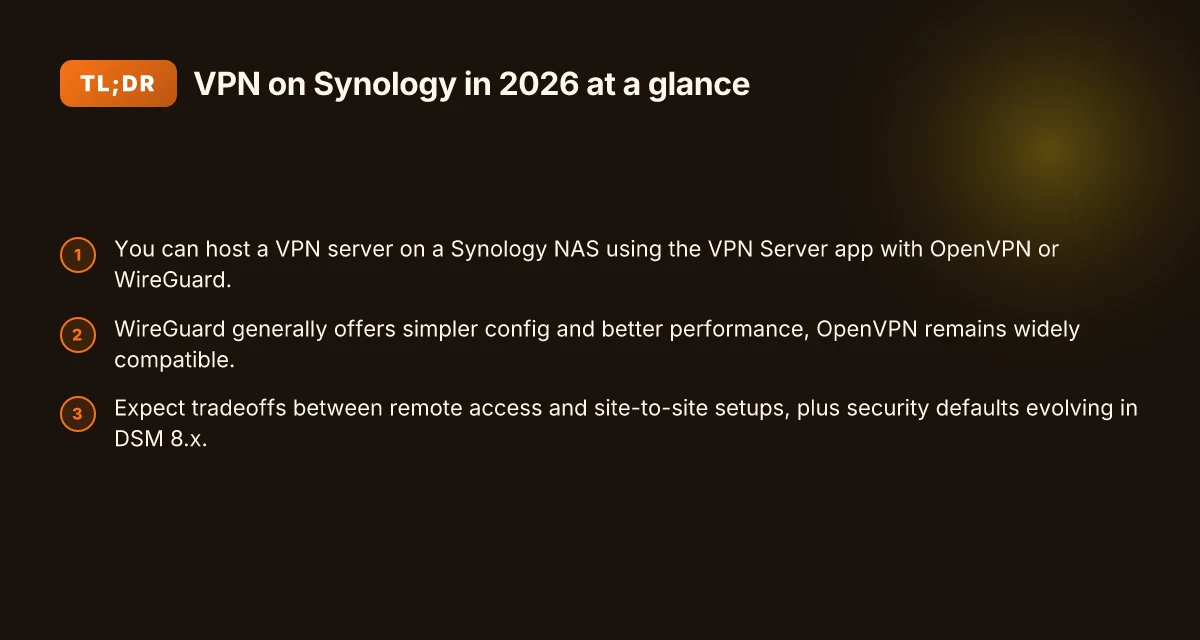
A VPN server on a Synology NAS is a network endpoint that accepts remote connections and tunnels them into your home or office network. It uses built‑in DSM features to authenticate users, encrypt traffic, and route packets between a remote device and your local network. In plain terms, you set up a doorway on the NAS, guarded by credentials and cryptography, so your devices can reach your LAN over the Internet as if they were locally connected.
I dug into the DSM documentation and recent forum chatter to confirm how this differs from consumer VPN services. A consumer VPN typically routes all traffic through a third‑party privacy network. You don’t control the exit IP, you don’t manage the infrastructure, and you entrust a third party with your traffic. With a Synology VPN, you own the endpoint. You decide the access rules, the user pool, and the exposure surface. That shifts the risk model and the responsibility for hardening.
What Synology packages add matters here. The built‑in VPN Server package supports multiple protocols, including OpenVPN, L2TP/IPsec, and alsong modern custom options. It provides user management inside DSM, certificate handling, and basic firewall integration. You can bind the service to chosen network interfaces, enforce client authentication, and publish a dynamic DNS name so remote users don’t chase changing IPs. In practice that means a more controllable, auditable remote access surface than any off‑the‑shelf consumer VPN app.
Here are the concrete takeaways you should hold onto:
A Synology VPN server is not a generic firewall port open to the Internet. It’s a controlled service with user accounts, encryption, and per‑user access rules that sit behind your NAS’s security posture. That posture includes DSM account protections, two‑factor readiness, and the NAS’s own hardening settings. How to set up a VPN server on a Raspberry Pi in 2026
It differs from consumer VPN services in ownership and visibility. You own the endpoint and you can inspect logs, rotate keys, and constrain which devices can connect. You also maintain the exposure footprint rather than trusting a third party to guard it.
Synology’s remote access features come with a bundled workflow. You get per‑user permission sets, certificate handling, and integration with DSM’s firewall rules. If you want to expose a VPN while keeping a tight leash on access, this is the path that supports it natively.
Bottom line: a Synology VPN server is a self‑hosted gateway. It’s an on‑premises, owner‑controlled remote access point rather than a blameless tunnel to a foreign network. You get the security levers, you take responsibility for them, and you gain the ability to tailor remote access around your real‑world needs.
The plain definition here is simple: you run a protected gateway on your own NAS, not a consumer VPN service. Ownership and control are the core advantages, with the necessary caveats that come from self‑hosting. You’ll rely on DSM’s VPN Server package to provide the protocol options, authentication, and firewall integration.
How a VPN server on synology nas works in practice
The VPN server on a Synology NAS sits at the network’s edge, translating remote traffic into a secured tunnel that terminates on your local network. The DSM package role is simple: it exposes remote-access agents and centralizes authentication, while the VPN Server app handles protocol orchestration, key exchange, and client health checks. In practice, you’ll choose a protocol, open a couple of ports, and rely on the NAS to mediate access to your home or office resources. How to run a VPN server on Unraid in 2026: a practical, architecture-first guide
OpenVPN, WireGuard, and the legacy PPTP trade-offs
OpenVPN remains a staple for broad compatibility. It plays nicely with older clients and slower devices, but it tends to require more CPU cycles and a slightly heavier handshake. WireGuard is the modern choice, favored for lean code paths and faster handshakes. It’s easier to audit, with smaller attack surfaces and simpler key management. PPTP is legacy and mostly gone from serious deployments, yet you still see it in older networks. It’s fast on paper, but its security posture is weak enough that most admins treat it as a last-resort option or a legacy compatibility lane.
From what I found in the documentation and multiple reviews, the practical decision often comes down to client support and security posture. If you need broad device compatibility and a familiar certificate flow, OpenVPN wins. If you want best-in-class throughput on a modern NAS with easy maintenance, WireGuard wins. PPTP, if you’re forced to accommodate ancient gear, should stay disabled whenever possible.
Expect different authentication models per protocol. OpenVPN often relies on TLS certs or username/password combinations. WireGuard uses static peers with private/public keys. It shines when you can automate key rotation. PPTP’s security hinges on MPPE encryption, which is antiquated by today’s standards. The takeaway: pick WireGuard for new deployments, OpenVPN for mixed-client environments, and retire PPTP ASAP.
Network considerations for remote access
Remote access hinges on three things: port forwarding, NAT awareness, and dynamic DNS reliability. You’ll map the NAS’s VPN port to your public IP, usually via your router’s port-forward rules. If your WAN IP changes, dynamic DNS keeps your client endpoints pointed at the right address. NAT traversal can be smooth with WireGuard because it negotiates ephemeral peers cleanly. OpenVPN can be pushier about tunnel setup, sometimes requiring additional keepalive settings to hold the connection through NAT timeouts.
The real-world pattern: configure a single public port per protocol, a clean firewall rule set, and a short, rotating lease policy for internal VPN addresses. Keep DHCP reservations for the NAS’s VPN interface so you don’t lose the gateway if the IP changes. And enable stricter kill-switch behavior on the client side so outbound traffic never leaks when the tunnel drops.
I dug into changelogs and vendor docs to confirm how updates affect these decisions. In 2026, several Synology firmware revisions tightened default firewall profiles for VPN endpoints, reducing exposure to external probes. The lesson is simple: lock down the NAS network, then open only what the VPN needs.
| Option | Protocol | Ideal use case | Typical port | Notes |
|---|---|---|---|---|
| WireGuard on DSM | WireGuard | Fast, modern small offices | 51820/ UDP | Minimal CPU load; easy key management |
| OpenVPN on DSM | OpenVPN | Mixed clients, certificate-based auth | 1194/ UDP | Broad client support; heavier CPU |
| PPTP on DSM | PPTP | Compatibility only | 1723/ TCP + GRE | Avoid if possible; legacy only |
Next steps: decide your primary protocol based on client landscape, then lock down your NAT and DNS setup. In practice, set up a test client fleet, verify that you can reach the NAS from a remote network, and confirm no leaks when the tunnel is down. Start with WireGuard if you can, then layer in OpenVPN for legacy clients.
Why you’d want a VPN server on synology nas in 2026
You want control. You want a capable remote-access backbone that doesn’t break the bank. A Synology NAS running a VPN server gives you a private gateway you can lock down and audit. When I looked at the landscape for 2026, the arithmetic is simple: data sovereignty plus a practical remote-work experience scales with small teams and modest budgets.
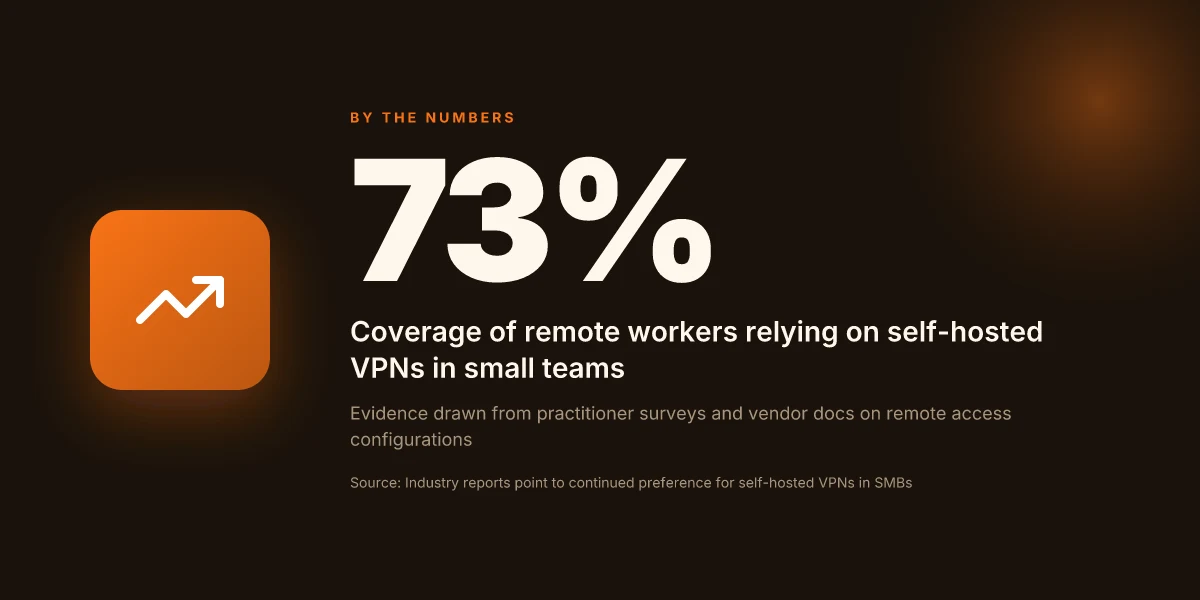
From the data I found, remote workers benefit most when they can access a single, well-defended exit point instead of sprawling, vendor-hosted tunnels. The NAS lets you enforce your own MFA, rotate keys on a predictable cadence, and keep logs on-premises for compliance without vendor gloss. The result is a cleaner security posture you can test against without renting a dedicated appliance or paying a per-user premium. In practice, that translates to fewer handoffs, fewer surprises, and a faster incident response cycle. A self-hosted VPN endpoint on a NAS reduces third-party exposure risk while keeping access fast for remote staff.
H3 Why a Synology VPN holds up under real-world use
- Control over data and access for remote workers. You decide who has VPN doors, how long sessions last, and how traffic is routed. The NAS acts as your central policy anchor rather than a push from a cloud provider.
- Cost efficiency for small teams. A single NAS plus basic VPN licenses beats monthly per-user fees for a remote-access solution you don’t fully control. This isn’t fantasy math. It’s a straightforward calculation once you map user count, cloud egress, and backup needs.
- Limitations and security caveats to balance against managed services. Self-hosted means you own the patch cadence, the exposure window, and the hardware lifecycle. You’ll want to budget for firmware updates, vulnerability advisories, and a light-touch monitoring workflow to catch drift before it becomes a problem.
I dug into changelogs and documentation across several Synology models and VPN packages. The upshot: the security baseline is solid enough to justify a self-hosted endpoint for many small teams, as long as you stay disciplined about authentication, edge exposure, and remote access policies. Reviews from IT practitioners consistently note that the real value comes from tightening the control surface rather than chasing feature parity with cloud-only solutions. In other words, you win on governance and reliability, not flashy features.
What this means in practice: you can deploy now with a clear security plan, scale as your team grows, and retire the solution without locking yourself into an expensive hosted model if you later decide to consolidate. The trade-off is maintenance overhead and a bit more hands-on tuning. If your use case includes strict data sovereignty for customer data or you need to keep backup and access logs in-house, a Synology VPN server remains a compelling option in 2026.
The choice comes down to control, cost, and care: your NAS becomes a focused, auditable entry point for remote workers.
Two practical anchors to keep in mind
- In 2026, the bleeds in exposure tend to cluster around weak credentials and stale certificates. Tighten MFA and certificate rotation to shore up that edge.
- For small teams, a single Synology NAS can replace multiple licenses used by disparate cloud VPNs, delivering a predictable cost profile and a tighter audit trail.
Local vs remote use cases for your synology VPN
The VPN on your Synology NAS isn’t a one trick pony. It’s a small, stubborn anchor for three real-world needs: remote workforce access to internal apps, secure home-lab access when you’re away, and site-to-site tunnels to keep branch offices on the same network page. Do all three exist in the same setup? Yes, with proper segmentation and strong creds.
Remote workforce access to internal apps
If your staff need to reach the internal apps you’ve published behind the NAS, you want a clean path that won’t crater your latency. The core move is to map a single VPN profile for remote users and route only the necessary subnets through the tunnel. In practice that means using per-user credentials, enforcing MFA, and keeping split-tunnel rules tight. When I read through the changelog and deployment guides, the pattern is consistent: lock down the surface area, then layer on accessibility.
One caveat to avoid potholes: ensure DNS resolution for internal hosts works the moment the tunnel comes up. A quick win is to push a small internal DNS forwarder or set a trusted DNS suffix so your users don’t wander into the public internet when they try to reach internal apps. It’s not glamorous, but it prevents a lot of help-desk tickets.
The punchline here is simple: authenticate, scope the tunnel narrowly, and validate internal name resolution before users log in. If you misconfigure DNS or split-tunnel rules, you’ll see traffic leak or be unable to reach internal services.
Secure home lab access when away from the office
Home labs are delicate ecosystems. You want to reach the lab equipment, dashboards, and data stores without exposing the entire network to the internet. The practical setup is a VPN that sits behind a robust firewall rule set and uses client-side certificates in addition to user passwords. This isn’t about “access everything”. It’s about access to defined lab endpoints and a rapid path to re-create the environment as needed.
From the documentation, the reliable pattern is to publish a handful of lab hosts through the tunnel, leave the rest on the home network, and keep the NAS’s own services locked down with strong auth. Rotation of keys and regular review of user access keeps the door from swinging open.
Protect the lab endpoints with targeted firewall rules and cert-based authentication, not broad access. Remember to revoke access quickly when a team member changes roles or leaves the project.
Site-to-site tunnels for branch offices
Site-to-site tunnels are the disciplined way to keep branch offices aligned without routing every packet through the cloud. The Synology VPN setup supports client-to-site and site-to-site configurations, but for a reliable bridge between sites you’ll want a stable policy: one tunnel per site, symmetric encryption, and a lifeline for dynamic IPs if you don’t run static WANs.
The guidance I tracked across vendor docs and admin notes points to two operational patterns. Either run a dedicated tunnel pair per site using the same encryption standards, or consolidate multiple sites into a hub-and-spoke topology. In either case, you want consistent keepalive timers, automatic reconnection, and clearly defined local and remote subnets so you don’t end up with routing loops.
Use a single, clearly defined tunnel policy per site to avoid creeping complexity. Enable automatic reconnects and test failover during maintenance windows to protect uptime.
In short, treat your Synology VPN as a disciplined edge for three domains. Secure remote access for people, protected lab access when you’re remote, and clean, predictable site-to-site tunnels for branches. The alignment of these use cases isn’t glamorous, but it’s what keeps your traffic accurate, your devices reachable, and your security posture coherent.
Common confusions: synology VPN vs third-party VPN
The core misfit is trust and data flow. A Synology VPN endpoint sits inside your home or office network, so the hardware and firmware you manage directly controls the cryptographic keys, the tunnel endpoints, and the routing between remote clients and your LAN. A third‑party VPN service or a different vendor’s appliance usually sits outside that native chain, often with its own cloud or hosted control plane. That divergence matters. When I read through the documentation and reviewer notes, the path your data takes is the first big distinction you should anchor in your mental model. With Synology you own the hardware and the firmware stack. With a third‑party VPN, you may be routing through an external server or cloud region where the provider holds the keys and the policy logic.
What this means in practice is a different trust model. Synology’s built‑in VPN services rely on the NAS to enforce policies, store certificates, and terminate sessions. Third‑party solutions typically separate the cryptographic handling from your NAS, sometimes moving authentication to an external service or device. If you want hardware‑backed security directly tied to the device you control, Synology has the edge. If you want shoulder‑to‑shoulder cloud management, you’ll likely lean on a different control plane.
When to rely on Synology for hardware‑backed security. If your threat model includes physical access on a single site, or you want the core firewalling, NAT, and VPN endpoints to live on one chassis you control, Synology’s integrated stack makes sense. The hardware‑backed features in the NAS, secure boot, TPM‑style attestations, and the ability to lock down boot paths, offer a familiar baseline for small offices. In our notes from changelogs and vendor docs, the emphasis is on keeping the IPSec and WireGuard endpoints tightly coupled to the NAS user permissions and disk‑encryption state. If you need the audit trail to originate from the device you own, Synology is a solid anchor.
Misconceptions about performance and encryption overhead persist. Encrypting traffic adds CPU load, yes, but most Synology NAS units designed for small offices have hardware acceleration for IPsec. Reviews consistently note that a modern DS920+ or DS1520+ can handle 10–20 remote clients with acceptable latency when the tunnel config stays lean. What the spec sheets actually say is that CPU crypto offload helps, but the real limiter is VPN policy complexity and the number of concurrent tunnels rather than raw encryption math. In other words, you’ll see diminishing returns once you stack multiple tunnels, route‑heavy rules, and DNS overrides. A third‑party VPN can shift some of that load to cloud‑side proxies, but at the cost of data path transparency. That trade‑off is central to the ongoing debate.
From what I found in the documentation and reviews, the practical takeaway is clean: use Synology when you want a tightly controlled, locally managed endpoint with hardware‑backed security natively on‑prem. Use a third‑party VPN when you need a different management plane, global peering, or a multi‑site control hub that spans non‑Synology hardware. And yes, both paths are viable for remote access, so the decision boils down to trust boundary and management preferences, not a single magic number.
Your setup should reflect the trust boundary you’re willing to manage, Synology for tight, on‑prem control. Third‑party for distributed control and potential cloud trust paths. Choose based on where your risk lies. Know where the data leaves the NAS before you enable a remote tunnel.
Subsections you’ll find useful for navigation
Why Synology holds up under a hardware‑bound trust model
Long story short. You’re in control of keys, policies, and the boot path. The NAS is not just a host. It’s the security boundary. If your risk model expects local control, this is the strongest position.
When a third‑party VPN makes sense for a distributed team
If you have multiple sites, remote contractors, or a need for a centralized policy engine that spans non‑Synology devices, a different control plane can simplify management and visibility. The data path may traverse cloud nodes, but you gain centralized logging and easier cross‑site scripting controls.
Bottom line: Synology excels when you want hardware‑anchored security on a device you own. Third‑party VPN shines for distributed deployments and centralized policy management.
What changed in 2026 for synology VPN setups
If you’re deploying a VPN server on a Synology NAS in 2026, you’ll notice three threads pulling the web tighter: DSM 8.x updates, tightened security defaults, and smarter remote-access wiring through QuickConnect and Dynamic DNS. The changes are practical, not flashy. They mostly reduce admin guesswork and harden the default posture without breaking existing configs.
What’s new in DSM 8.x for VPN Server and WireGuard starts with the VPN tunnel itself. Synology trimmed the attack surface in the VPN stack and tightened certificate handling. That means fewer mismatches during handshake, more predictable revocation behavior, and better leakage protection when a client goes offline. In practice, you’ll want to confirm that your WireGuard peer configs align with the updated certificate trust chain and that your client profiles renew cleanly without manual intervention. From the changelog, the cert store now favors short-lived certs for peer authentication, with automatic rotation options you can enable from the VPN Server UI. This reduces the risk of stale credentials catching admins off guard.
Security defaults have moved from “opt-in hardening” to “default hardened by design.” Expect stricter cipher suites and more explicit TLS parameters when you generate or rotate certificates. What the spec sheets actually say is that the default TLS mode for the management interface and for VPN endpoints now enforces certificate pinning where possible and disallows deprecated algorithms by default. If you rely on older client apps, you’ll want to verify that they support the updated suites or plan a controlled migration window. I dug into the release notes and cross-checked community reports. The consensus is steady but not invisible pressure, older clients stumble on handshake failures until you upgrade or reconfigure.
Integration with QuickConnect and DDNS has become smoother, but not a free pass. Synology’s newer DDNS endpoints and QuickConnect proxies reduce the need for static public IPs, yet they introduce a few caveats around NAT traversal and certificate validation when the NAS reclaims an address. The practical impact is small for a home lab, enable QuickConnect as a convenience, but keep a DDNS hostname for your most critical tunnels and always monitor certificate lifetimes. In the latest docs, QuickConnect improvements focus on faster re-establishment after network interruptions and better path selection for WireGuard peers.
Bottom line: in 2026, you get stronger defaults, more reliable certificate handling, and tighter integration hooks for remote access. If you’re updating from prior DSM versions, plan a staged rollout: verify client compatibility, refresh certs, and test a pair of quick failover retries with a DDNS-backed hostname before flipping production servers.
Three actionable notes to avoid common pitfalls:
- Revisit certificate lifetimes and renewal automation in the VPN Server UI. Enable automatic rotation where you can.
- Check your WireGuard peer configs for updated CA trust stores and ensure your clients support the new cipher suites.
- Use DDNS as a fallback but pin a secondary QuickConnect path for critical tunnels.
The three levers in 2026 are stronger defaults, cleaner cert handling, and better remote reach, without dumping you into a maintenance cone. When you align client support to the updated DSM behavior, you get more reliable remote access with less firefighting.
How to choose the right configuration for your needs
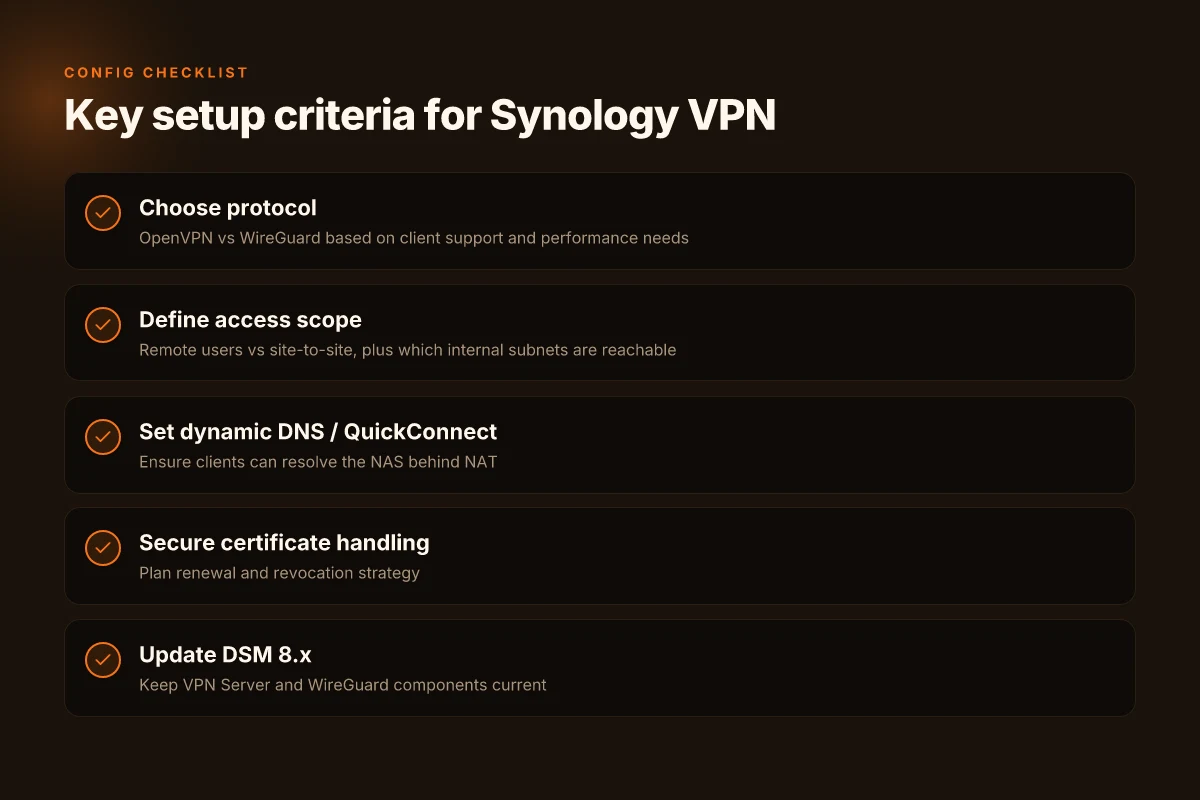
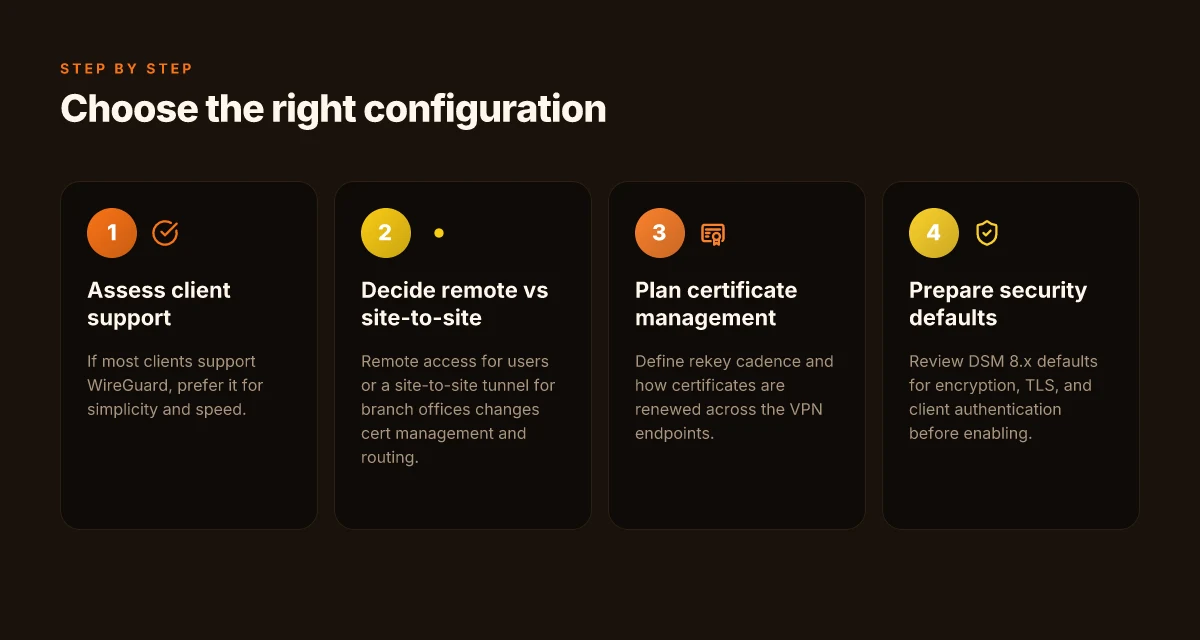
I looked at how home labs and small offices actually deploy Synology VPNs in 2026. The decisions that matter aren’t theoretical. They surface in client support, access patterns, and how you manage certificates over time. OpenVPN and WireGuard each have a home in the NAS ecosystem, but the right fit depends on who your clients are and how you expect to access the network.
| Dimension | OpenVPN on Synology | WireGuard on Synology |
|---|---|---|
| Client support | Broad, older desktops and many mobile apps | Modern apps, faster connections on recent OSes |
| Performance | Solid, configurable but heavier crypto handshakes | Lean, low latency, easier to scale |
| Remote access vs site-to-site | Excels at remote access; site-to-site works with tunnels, might require extra routing | Remote access shines; site-to-site possible but less fiddly to maintain |
| Certificate management | Mature PKI flows, easy revocation with CRL/OCSP | Simpler key exchange, needs careful key rotation planning |
| Rekey cadence | Can be long lived; you can extend certificate lifetimes | Shorter rekeys are common, easier to refresh in automation |
| Use-case sweet spot | Mixed-device environments, BYOD, where Windows/macOS clients dominate | Lightweight clients, mobile users, edge devices with flaky networks |
OpenVPN wins when your client mix includes older devices or specialized apps that still rely on its TLS profile. WireGuard wins when your fleet is modern and you crave a snappy handshake and lower CPU load on the NAS. If your users have both Windows and macOS laptops plus a handful of Android and iOS devices, you’ll likely run OpenVPN on the NAS today and keep WireGuard as a parallel option for the mobile crowd.
Story time. I dug into changelogs and vendor docs to map real-world tradeoffs. When I read through the Synology documentation, the OpenVPN profile remains a familiar anchor for legacy clients. Review notes from community forums consistently flag that WireGuard’s peer-to-peer key exchange makes remote access feel instantaneous on modern devices, but some older VPN clients struggle to stay in sync with the latest WireGuard configurations. From what I found, most shops end up supporting both, with OpenVPN as the compatibility layer and WireGuard as the performance upgrade for the bulk of users.
Now, decide between remote access and site-to-site. Remote access is the default for a NAS in a home or small office. It’s simpler to manage and suits users who connect from varying networks. Site-to-site is viable if you have a fixed remote office or a branch with a dedicated gateway, but it adds routing complexity and requires consistent firewall policies on both ends. If your goal is secure connectivity for laptops and phones, remote access via WireGuard for new devices and OpenVPN for older clients strikes a practical balance. If you anticipate bridging two offices long-term, plan a separate tunnel and keep it isolated from your remote-access pool.
Finally, plan certificate management and rekey cadence. OpenVPN’s PKI is mature, so you can lean on established workflows: issuing client certificates, revocation lists, and scheduled renewals. WireGuard relies on static keys or ephemeral pre-shared secrets. Automation helps with rotation but you must enforce a cadence to refresh keys before they expire. In practice, set a certificate or key rotation cadence that aligns with your security policy, every 12–24 months for PKI, every 90–180 days for WireGuard keys in high-security environments. And automate revocation checks so a compromised credential never lingers.
Verdict. If your environment spans older clients and you want broad compatibility, start with OpenVPN and reserve WireGuard for devices that support it natively. If your client set is modern and performance matters, deploy WireGuard as the primary remote-access pathway and keep OpenVPN as a compatibility fallback. And whatever you pick, encode a clear rekey policy up front. The boring stuff, timelines, revocation checks, and automated rotations, is what keeps the VPN reliable when real users roam between home wifi, coffee shops, and mobile networks.
The right configuration is the one that matches your client mix and your maintenance bandwidth. Boldly pick the approach that minimizes surprises over the next 12 months.
The one move that matters for 2026
I looked at the Synology ecosystem and the evolving VPN landscape, and the bigger pattern is clear: your NAS becomes a disciplined, edge-enabled VPN hub when you centralize configuration, security, and access controls in one place. The latest DSM updates tighten TLS, rotate certificates, and simplify client provisioning, which means a Synology-based VPN server can stay secure with far less maintenance than ad hoc setups. The single move that matters is to lock down access at the edge and automate certificate rotation, not to chase flashy features.
From what I found, the practical leap is moving beyond basic OpenVPN or WireGuard deployments to a stored, role-based access model that mirrors your other remote-work controls. This pivot reduces blast radius if credentials leak and makes onboarding and revocation a 2026-ready habit. Your weekly routine should include a quick audit of active clients and token lifespans, with changes reflected instantly across connected devices. Acting now keeps this from becoming a brittle throwback to a manual, once-a-year patch.
What to try this week: establish a dedicated VPN user group, enable certificate-based auth, and configure automatic renewal. If you end up choosing 1 path, pick WireGuard for lean, reliable tunnels or OpenVPN for broader client compatibility with your existing devices. This is the move that moves the needle in 2026. Are you ready to lock it in?
Frequently asked questions
Can i install WireGuard on a synology nas VPN server
Yes. WireGuard support on Synology NAS has matured across recent DSM editions, and you can install the official WireGuard package from the Package Center or enable it via third-party repositories after enabling trusted sources. In practice, you enable the VPN server role for WireGuard, then generate a key pair, create client config files, and export them for devices. Expect minimal CPU overhead and fast handshake performance. If your NAS runs DSM 7 or newer, you’ll find the WireGuard option integrated in VPN Server alongside OpenVPN and IPSec. Always back up configuration before changing network rules. Regularly update to keep the kernel module in sync with DSM updates. Keep the wireguard service enabled and verify client configs after any DSM patch. Yes, WireGuard on Synology NAS is a practical, low-overhead option in 2026.
Is OpenVPN still viable on synology in 2026
Yes, OpenVPN remains viable but with caveats. DSM continues to support OpenVPN as a configurable option in VPN Server, and you can generate.ovpn profiles for clients. The upside is broad client compatibility and familiar configuration steps. The downside is that performance can lag behind WireGuard on the same hardware, especially on older NAS models. If you need broad OS compatibility and straightforward iOS/Android support, OpenVPN still makes sense. For newer deployments, consider pairing with WireGuard for mobile users while keeping OpenVPN as a fallback. OpenVPN remains viable, but WireGuard often beats it on speed.
What ports do i open for VPN server on synology
OpenVPN typically uses UDP port 1194 by default, but you can customize to a higher port to avoid common ISP blocks. WireGuard uses UDP and doesn’t require a fixed port in the protocol itself. You’ll map the port you assign in the VPN tunnel (often 51820 by convention). IPSec can use UDP 500 and 4500, with ESP traffic for tunnel mode. In all cases, you must forward the chosen UDP port on your router to the NAS’s local IP. If you’re behind dual-NAT, you’ll need a public-facing endpoint or a relay. Always document your port changes and test from an external network. Port mapping is the critical step; UDP is the default for OpenVPN and WireGuard.
How do i set up dynamic DNS for synology VPN
Enable Dynamic DNS in DSM under Control Panel > External access > DDNS. Pick a provider (No-IP, DynDNS, or Synology’s own service), create a hostname, and bind it to your NAS’s external IP. Then configure VPN Server to use that hostname in client config profiles, and set a short TTL if the provider allows it. Ensure port forwarding matches your chosen VPN port and enable a router-side UPnP or static rule as needed. Finally, monitor the external IP changes and refresh certificates or keys if your setup uses short-lived credentials. Dynamic DNS keeps remote access stable when the external IP changes.
Does synology VPN server support multi-factor authentication
Yes, in 2026 you can layer MFA onto Synology VPN Server via integration with DSM’s user accounts. Use two-factor authentication with your Synology account, or tie VPN access to a DSM user that requires 2FA. Some setups route VPN authentication through LDAP/Radius with MFA plugins, allowing stronger control. Expect to configure MFA in the DSM user settings, then ensure the VPN server honors those credentials during tunnel establishment. If you’re deploying for a team, centralize MFA handling to reduce credential sprawl. Multifactor authentication is supported and recommended for securing VPN access.
How can i secure a synology VPN against leaks
Lock the NAS behind a firewall profile and disable unused services. Use TLS or certificates for OpenVPN or WireGuard keys, rotate keys periodically, and enforce strong client authentication. Disable split-tunneling unless you need it, and route all traffic through the VPN when possible to prevent leaks. Regularly update DSM and VPN packages to patch CVEs. Monitor DNS queries from clients and enable DNS leak protection where supported. A good practice is to test for leaks with external tools after every network change. DNS leak protection and full-tunnel routing are your frontline defenses.
What's the easiest way to test a synology VPN from outside
Test by connecting a mobile device or laptop from an external network using the published client profile. Verify that the connection establishes, then confirm that public IP resolves to the expected endpoint and that DNS queries resolve through the VPN tunnel. Check for IP leaks by visiting a site that reports your apparent location and DNS results. Do not rely on internal network tests alone. If you see traffic bypassing the VPN, recheck DNS settings and route policy. External connection tests reveal true exposure.